How to Verify an Address for Shipping in WooCommerce
Learn how to verify an address for shipping in WooCommerce, from checkout validation to ZIP and state checks for regulated products.

An order is ready to pack, but the shipping address looks wrong. The apartment number is missing, the ZIP code points somewhere other than the selected state, and the cart contains a product you can't ship everywhere. You can hold the order and email the customer, but that leaves your team resolving a checkout problem after payment.
To verify an address for shipping in WooCommerce, separate three decisions: whether the address has the right format, whether a carrier can deliver there, and whether the products may ship to that destination. Connect those decisions through the confirmed address, not whatever the shopper originally typed.
Verification States and What Each Result Means
Skipping verification has a measurable cost. In a study covering online retailers and consumers in the United States, United Kingdom, and Germany, Loqate found that 8% of first-time domestic deliveries failed, with an average cost of $17.20 per failed delivery in the United States. Those survey findings aren't a forecast for your store, but they make a useful operational point: catching an address problem before fulfillment is preferable to paying to resolve it afterward.
A single valid/invalid flag hides the reason an address needs attention. A postal code can follow the correct pattern while the street doesn't exist. A building can exist while the customer's unit remains unknown.
Automate Shipping Compliance
Block orders to restricted states automatically. 3-day free trial.
Start Free TrialUse separate results rather than treating every successful lookup as permission to ship.
Verification states, what they prove and what to do
| State | What it proves | Possible results | What the store does |
|---|---|---|---|
format_valid | Structure fits the country template and postal code pattern | Pass or fail | Block malformed input and ask the customer to fix it |
postal_reference_match | Street, locality and postal code exist in a current postal reference | Full match, partial match or no match | Show the closest match; never replace the entry silently |
deliverable_confidence | Likelihood the carrier can deliver to this name and address | High, medium or low | Medium or low: ask for a unit number or clarification |
user_confirmed | Customer accepted the verified or original address | Yes or no | Pass only the confirmed address to the restriction check |
Customer confirmation isn't proof of deliverability. If someone insists that an unmatched address is correct, retain their confirmation, but keep the order on hold until your review policy permits release. Don't convert that choice into a fabricated postal match.
The visual below summarizes the customer-facing outcomes. Internally, keep the verification states separate from a restricted-product result.
Practical rule: Save each verification result on the order, including the reason for any hold. A warehouse operator shouldn't need to repeat the lookup to understand what happened.
Choose Client-Side and Server-Side Checks
Split the work between the browser and your WooCommerce server. Client-side feedback helps shoppers correct mistakes while typing. Server-side validation determines which address your store accepts after submission.
Autocomplete is convenient, but it isn't an enforcement control. A shopper can bypass browser scripts, and a saved address or express checkout can follow a different submission path.
Verification methods compared
| Method | What it does | Trade-off |
|---|---|---|
| Client-side field feedback | Autocomplete and format hints during entry | Can be bypassed, so not a control on its own |
| Server-side postal reference check | Validates and matches the normalized address after submission | Authoritative for the order, adds a request and cost per check |
| Pre-payment and pre-label re-check | Re-verifies the final cart address after edits and shipping changes | Catches late changes, adds a call when changed data needs verification |
Choose a postal reference service that supports country-specific address components and templates. Don't force every destination into mandatory US-style state and ZIP fields.
Free Shipping Compliance Audit
We'll review your WooCommerce store's shipping compliance for free.
Make the handoff explicit
Your integration should save the canonical address, meaning the standardized destination accepted through verification, and pass that value to the restriction engine. Our guidance on location data accuracy explains why geographic inputs deserve attention before you configure restrictions.
To control paid API calls, compare the final address with the previously checked version. Reuse an eligible result when nothing relevant changed, subject to your freshness policy. Retain requests and responses with appropriate access controls and retention limits, since address logs contain personal information.
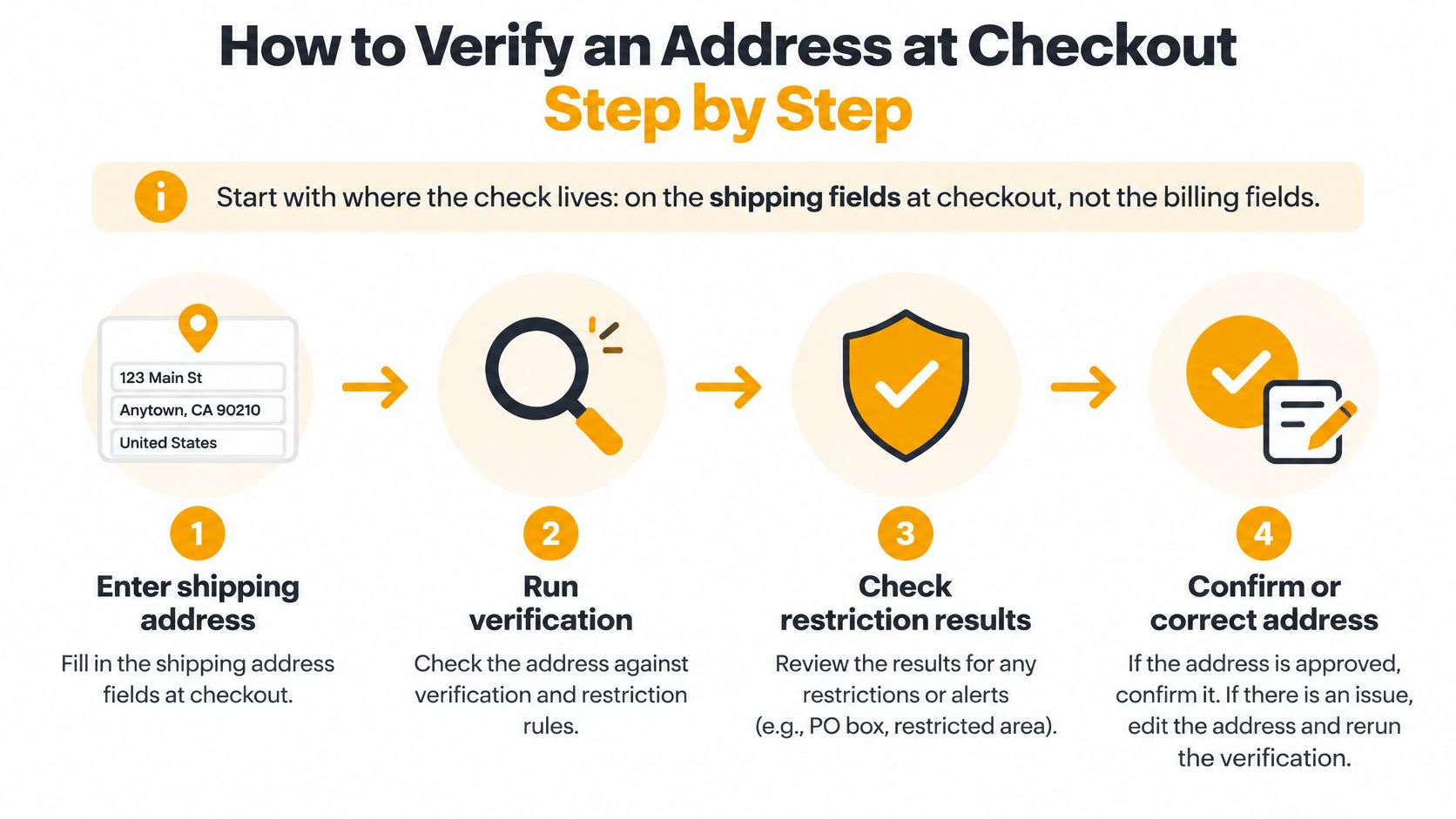
How to Verify an Address at Checkout Step by Step
Put verification on the shipping fields, not just the billing fields. That's the destination the carrier uses and the location your geographic restrictions must evaluate. Our checkout process works with any shipping method because it checks the shipping address rather than shipping rates.
This flow places address entry and restriction handling in the same customer journey.
Build the verification sequence
The Universal Postal Union's S42 addressing standard uses a global address-component model with country-specific templates. Use that approach to structure the workflow rather than applying a domestic formatting rule to every order.
-
Capture components separately. Collect country, state or region, city, postal code, and delivery lines in distinct fields so each can be checked appropriately. Keep recipient and unit details available rather than burying everything in an unstructured address string.
-
Normalize casing, abbreviations, punctuation, accents, and extra spaces according to the destination's conventions. Preserve meaningful characters and identifiers, because aggressive cleanup can remove a rural route, box number, or building detail needed for delivery.
-
Check postal-code structure against the country. Use the selected destination to choose the applicable pattern, including countries where a postal code isn't required. Passing this check establishes syntax, not the existence of a delivery point.
-
Map the components to the country's official addressing template. This prevents your checkout from rejecting a legitimate address because its ordering or administrative divisions don't resemble a US address.
-
Compare the normalized destination with a current postal reference database. Record whether the response is a full match, partial match, or no match, together with any delivery-confidence information the service supplies. Don't invent a confidence score when the provider only returns a formatting result.
-
Present the suggested address and original entry side by side for customer confirmation. Make the changed components visible, and route unresolved differences to clarification instead of choosing the nearest-looking destination.
Save the address your store will use
Save the confirmed canonical destination for the restriction check, alongside the original input and validation response. If the customer edits the destination afterward, invalidate the previous approval rather than attaching it to new address data.
Address corrections also need usable checkout controls. For broader work on field layout and recovery paths, Helbling Digital Media's checkout optimization guide provides a useful companion resource.
Use the walkthrough below when reviewing how restriction handling fits into checkout.
<iframe width="100%" style="aspect-ratio: 16 / 9;" src="https://www.youtube.com/embed/n7NZ0nGAsIU" frameborder="0" allow="autoplay; encrypted-media" allowfullscreen></iframe>Fix Failed and Unclear Addresses Without Losing the Sale
Start with a missing apartment or unit number. A lookup can recognize the building without identifying the customer's delivery point. Ask for the missing detail instead of declaring the whole address invalid.
An Adobe-hosted retailer delivery study found that retailers attributed 19% of failed deliveries to inaccurate delivery-address details. Entry-time feedback alone won't catch a destination replaced later through saved-address selection, checkout edits, or a shipping-method change. Check the final cart address before payment and confirm its verification status before label creation.
Common address failures, causes and fixes
| Failure | Typical cause | Fix |
|---|---|---|
| Missing apartment or unit | Customer skipped Address Line 2 | Prompt for the unit number when the building has several units |
| City and ZIP code do not match | Typo, or a city change after a boundary update | Suggest the postal reference city and ask the customer to confirm |
| Stale address after a move | Saved address from an earlier account | Re-verify against the final cart address before payment |
| Parcel locker or military address | Processed as an ordinary street address | Flag for address-type review; request a supported street address or locker code where appropriate |
| Rural route or box number lost | Normalization removed the identifier | Keep the original input and don't strip identifiers during normalization |
| Ambiguous match | Several postal reference results fit | Send to manual review instead of choosing one |
Don't require a military-address customer to invent an ordinary street address. Check whether your verification provider and selected carrier support that address type, then request the missing components or offer an appropriate alternative.
Give uncertain results a recovery action
The Universal Postal Union's address-quality brief distinguishes broader address-quality problems from major street, locality, and postal-code errors. That distinction matters when a database match looks acceptable but the customer record is outdated or insufficiently specific.
Assign an operational outcome:
- Deliverable: Let the customer confirm and continue to the product eligibility decision.
- Deliverable after clarification: Request the specific missing detail, such as a unit or building identifier.
- Outdated: Ask the customer to supply their current shipping destination.
- Duplicate: Have them select the intended saved address, then verify that selection.
- Unserviceable: Offer another supported destination or explain that the selected service can't deliver there.
Preserve the original entry, require confirmation, and keep unresolved orders out of fulfillment. A suggestion is an option, not permission to rewrite the customer's destination.
Explain restrictions without clearing the cart
Customers should receive clear guidance before checkout when an item can't ship to their address. At checkout, our cart message reads “Some items in your cart cannot be shipped to your address:” followed by the product's restriction message.
The customer must remove the listed items or change the shipping address before placing the order. We don't remove anything for them. Use the principles in our checkout experience guidance to make that recovery action obvious.
Say a shopper enters a nearby ZIP code while retaining a restricted city. Verification identifies the restricted locality, and the restriction message names the affected product. The shopper can supply another legitimate, eligible destination without contacting support, provided that replacement also passes verification.
Which Address Field Wins When Restrictions Apply
Address verification and compliance verification are separate decisions. The former establishes a usable destination; the latter evaluates whether the particular product or variant may ship there under the applicable geographic rule and effective date.
Configure the integration so the restriction check receives the confirmed canonical address. Then test the edition-specific matching behavior rather than assuming every geographic field has equal priority.
Which value each check uses
| Address case | Value the check uses | Result |
|---|---|---|
| Standard US address | Verified canonical city, state and ZIP | Rule applies to the verified values |
| ZIP+4 entry in WooCommerce | Exact ZIP+4 match, such as 60601-1234 | A 5-digit rule does not block it |
| ZIP+4 entry in Shopify edition | ZIP+4 shortened to 5 digits before matching | A matching 5-digit rule blocks it |
| ZIP prefix from another state | ZIP's state used from that point on | Restriction follows the ZIP state |
| Non-US shipping country | Not restricted by this check | Needs its own international policy |
| No state set or shipping country not US | Check skipped | Needs its own policy |
| Rule with start or expiry date | Effective date compared to order date | Active only inside the window |
Treat mismatches as a release decision
If the first three digits of a ZIP code belong to a different state than the customer selected, our check uses the ZIP code's state from that point on. The restriction follows that state, not the dropdown selection.
For firearms and other regulated products, I recommend an additional store policy: block submission on a ZIP/state mismatch and require correction, rather than treating the precedence rule as sufficient clearance. Hold ambiguous destinations for manual review and retain the verification log with the release decision.
Confirm scheduled activation and expiry behavior using the store's date and timezone settings. International orders need separate controls, and geographic eligibility doesn't establish age or identity. Confirm carrier requirements and applicable rules for the exact product before launch; this workflow doesn't replace legal advice.
Test Real Addresses and Confirm Your Checks Before Launch
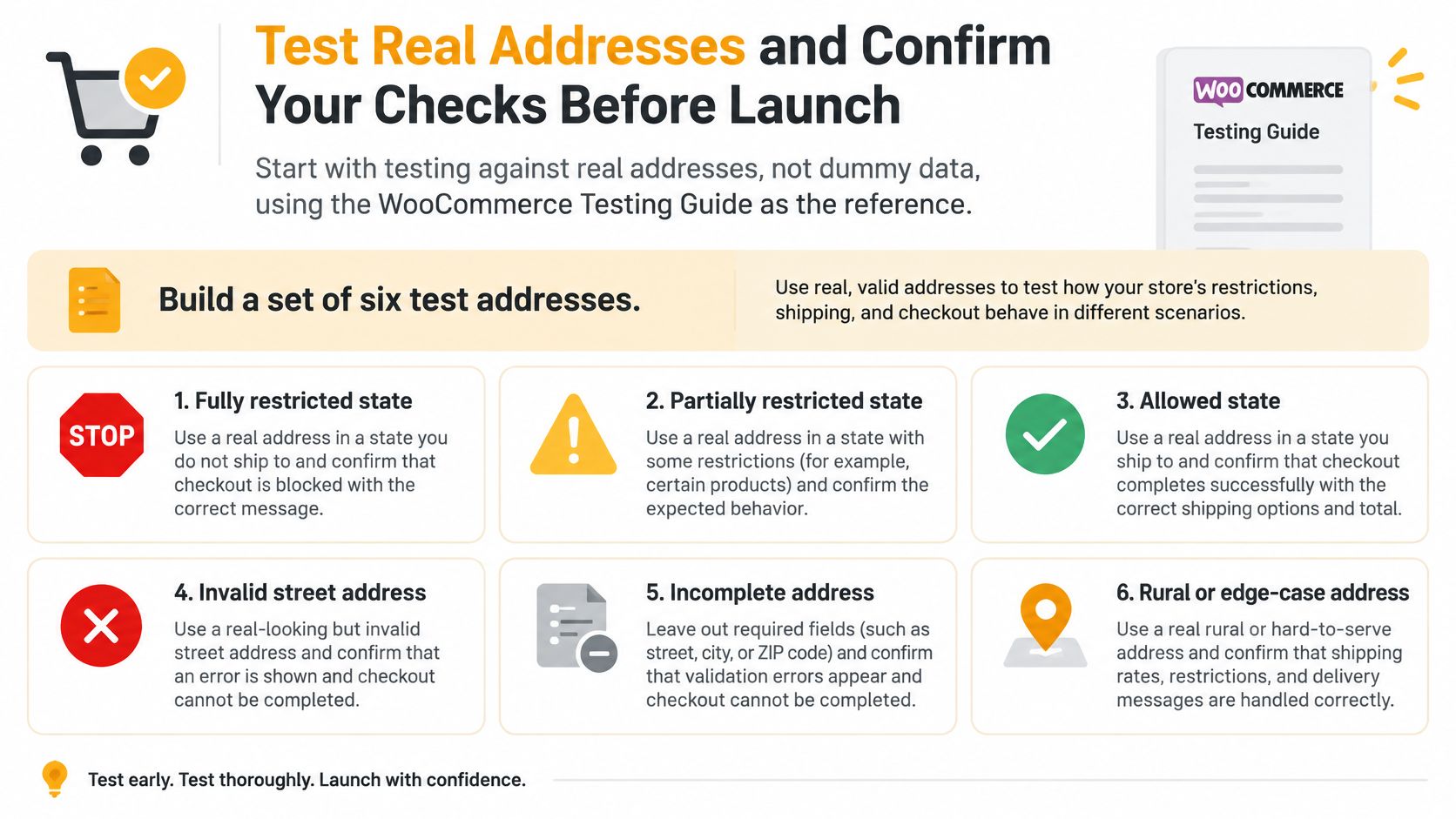
Test with real addresses, not invented street names that merely satisfy required fields. Use the WooCommerce Testing Guide through our testing environment guidance, and run controlled tests without releasing shipments.
Build a test sheet containing the original entry, verified destination, expected outcome, actual outcome, and the reason for any difference.
- Fully restricted state: Use a real destination in a state blocked for the test product. Expect the order to stop before payment.
- City-level restriction: Choose an address inside a restricted city. Confirm the product-specific city rule matches the verified locality.
- State-border ZIP: Use a legitimate address near a state boundary, then deliberately introduce a state mismatch. Check both the precedence behavior and your additional mismatch policy.
- ZIP+4 destination: Test the complete postal code against the rules configured for your edition.
- Apartment destination: Submit the same address with and without its unit. Confirm that missing information triggers clarification when the reference service identifies that need.
- Non-US destination: Verify that your separate international policy handles the order, because the US restriction check won't block it.
This visual adds useful coverage for allowed, invalid, incomplete, and rural destinations alongside the launch cases above.
Read the decision log
Our log shows the address checked, category and tag IDs found on each product, matched rules, the rule that restricted an item, and any ZIP/state mismatch. Compare that address with your verification response. A correct block for the wrong input still indicates an integration problem.
Test saved-address selection, express checkout, and subsequent address edits as well as ordinary typing. Include a mixed cart so you can confirm that the message identifies the restricted product without implying that every item is prohibited.
Launch gate: Don't launch until every required address case returns its expected result and you can explain the decision from the saved records.
After launch, review restricted-order attempts weekly for repeated unit-number failures and ZIP/state mismatches. For complex setups, email support@shiprestrict.com with what you sell, where you ship, your rule list, and the address you're testing.
Ship Restrict applies geographic shipping rules and gives customers clear guidance when a product can't ship to their destination. Visit Ship Restrict to configure your restrictions, connect them to your verified-address workflow, and test the checkout decisions before accepting live orders.
Automate Shipping Compliance
Stop worrying about restricted states. Ship Restrict handles it automatically.

Cody Yurk
Founder and Lead Developer of ShipRestrict, helping e-commerce businesses navigate complex shipping regulations for regulated products. Ecommerce store owner turned developer.
Automate Shipping Compliance
- Block restricted states
- No more cancellations
- Set and forget
3-day free trial · Card required