On Shopify, every restriction is a rule. What changes is the rule's target: all products, specific products or variants, collections, tags, or product types. This guide explains each target and how rules work together.
On WooCommerce, product and variation restrictions are set on the product itself. See Restriction Types on WooCommerce.
The Rule Form
Click Add rule on the Shipping restrictions page, or click a rule's name to open Edit rule. The form has four sections:
- Rule: the Name and the Logic (block or only allow)
- Applies to: which products the rule covers
- Locations: states, cities, and ZIP codes
- Notes: for your reference only; buyers never see them
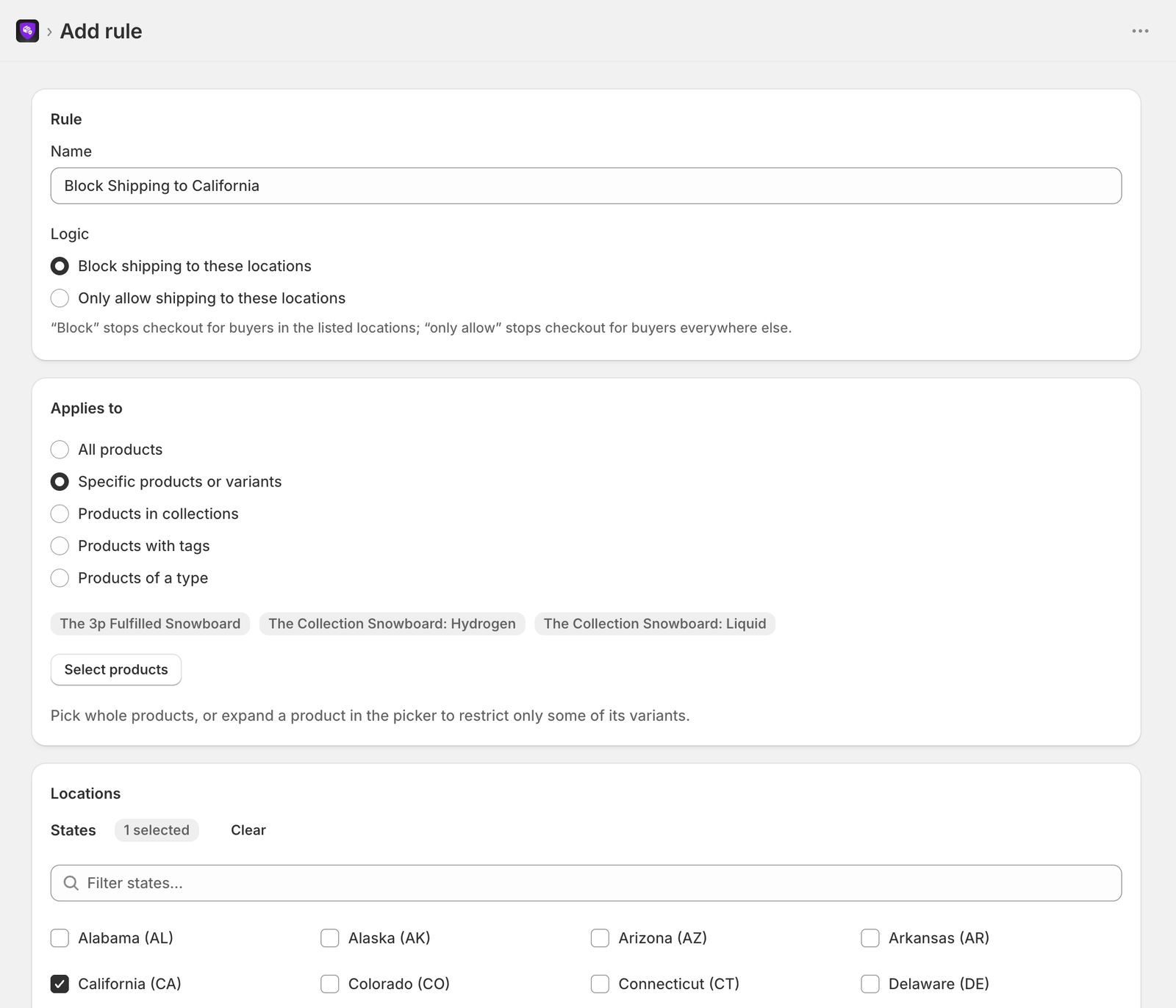
Applies To
Each rule uses one of these targets.
All Products
The rule covers every product in your store.
Specific Products or Variants
- Choose Specific products or variants
- Click Select products
- In Shopify's product picker, select whole products, or expand a product and select only some variants
- Close the picker; your choices appear as badges
A product selected whole stays covered as you add variants to it later. A product with only some variants selected covers just those variants. Selecting every variant counts as the whole product.
This is how you restrict individual products and variants on Shopify, and unlike WooCommerce product restrictions, these rules can use either logic.
Products in Collections
- Choose Products in collections
- Click Select collections and pick one or more collections
A product matches if it's in any selected collection. Only the collections you pick count: selecting a collection doesn't include other collections.
Products With Tags
Choose Products with tags and tick one or more tags. The list shows the tags already used on products in your store, so tag some products first if it's empty. A product matches if it has any selected tag.
Products of a Type
Choose Products of a type and tick one or more product types from your store. A product matches if its product type is one of those selected.
Tags and types you've saved on a rule stay ticked even if no product uses them any more.
Logic
- Block shipping to these locations: checkout stops for buyers in the listed locations
- Only allow shipping to these locations: checkout stops for buyers everywhere else in the US
See Location Restrictions on Shopify for how locations match.
How Rules Combine
For each item at checkout, Ship Restrict goes through your rules in the order they're listed:
- Rules that don't cover the item are skipped
- A block rule stops checkout if the address matches one of its locations
- An only allow rule stops checkout if the address matches none of its locations. If it matches, the next rule is checked.
So rules add up. One rule can't allow a location that another rule covering the same item blocks, and if two only-allow rules cover the same item, the address has to be on both lists. Order doesn't change whether an item is blocked, only which rule catches it first.
Example
| Rule | Applies to | Logic | Locations |
|---|---|---|---|
| No Idaho | All products | Block | ID |
| Magazines limits | Collection "Magazines" | Block | CA, NY |
| 30-round variant | One variant of "Mag Pro" | Block | CO |
The 30-round variant of Mag Pro (in the Magazines collection) is blocked for ID, CA, NY, and CO. Its other variants are blocked for ID, CA, and NY. Everything else in the store is blocked only for ID.
Editing, Deleting, and Order
- Edit: click the rule's name, change it, and click Save rule
- Delete: click Delete in the rules table, or Delete rule on the edit page, and confirm. The rule stops being enforced as soon as it's deleted, and this can't be undone.
- Order: new rules are added to the end of the list. Imported rules are added after your existing ones unless you replace them. There's no reordering, and none is needed because order doesn't change the outcome.
Every change is published to checkout automatically. Check the Sync status panel to confirm.
Differences From WooCommerce
| Shopify | WooCommerce | |
|---|---|---|
| Per-product restrictions | A rule targeting specific products or variants | Fields on the product's Shipping and Variations tabs |
| Per-product logic | Block or only allow | Block only |
| Groups of products | Collections, tags, or product types, several per rule | One category or one tag per rule |
| Category hierarchy | None (collections are flat) | Only directly assigned categories match |
| Editing rules | Edit in place | Delete and re-add |
| Rule limits | None, within the size limits | 2 rules and 2 products without a Pro license |
Choosing the Right Target
- Every product has the same restriction → All products
- A curated group of products → a collection
- Products spread across collections → a tag
- Everything of one kind → a product type
- A few products, or one variant → specific products or variants
Collections, tags, and types keep large catalogs manageable: products pick up the restriction as soon as they join the collection or get the tag.
Need help? Email support@shiprestrict.com if you're unsure which target fits your products.