If you have a large Shopify catalog, this guide shows you how to keep restrictions manageable, import the built-in presets, and move rule sets in and out of Ship Restrict.
Using WooCommerce? See Large Catalogs, Presets & Import/Export on WooCommerce.
Target Groups, Not Lists of Products
A rule that targets a collection, tag, or product type covers every matching product, including ones you add later. A rule that lists specific products has to be edited whenever the catalog changes.
| Instead of | Use |
|---|---|
| The same restriction on 200 hand-picked products | A tag, or a collection, and one rule |
| A restriction on every product | One All products rule |
| One rule per product of the same kind | One Products of a type rule |
A single rule can target several collections, tags, or types at once. See Restriction Types on Shopify.
To tag many products at once, use bulk editing on the Products page in your Shopify admin, then tick that tag in a rule.
Size Limits
There's no limit on the number of rules, but checkout can only read so much configuration. Going over either limit makes the sync fail, and the Sync status panel shows Out of date with the reason.
- Total size: all your rules together must compile to less than 10,000 bytes. Long lists of hand-picked products or ZIP codes use the most space. Over the limit, checkout keeps enforcing your last published rules, and the error reads "Rules are too large to enforce…" with a suggestion to combine products into shared rules or target tags, collections, or product types.
- Collections and tags: across all rules, checkout supports at most 100 different targeted collections and 100 different targeted tags. Over that, rules for the newly added collections or tags aren't enforced, and the error reads "…checkout supports at most 100. Consolidate rule targets."
The rule form lists up to 250 of your store's tags and product types.
Built-in Presets
Ship Restrict includes researched rule sets for regulated hemp products. Every preset rule applies to all products and blocks one or more states.
| Preset | Rules | What it covers |
|---|---|---|
| CBD & Hemp Products | 10 | Hemp-derived CBD products with less than 0.3% Delta-9 THC |
| THCA Hemp Products | 37 | THCA hemp products |
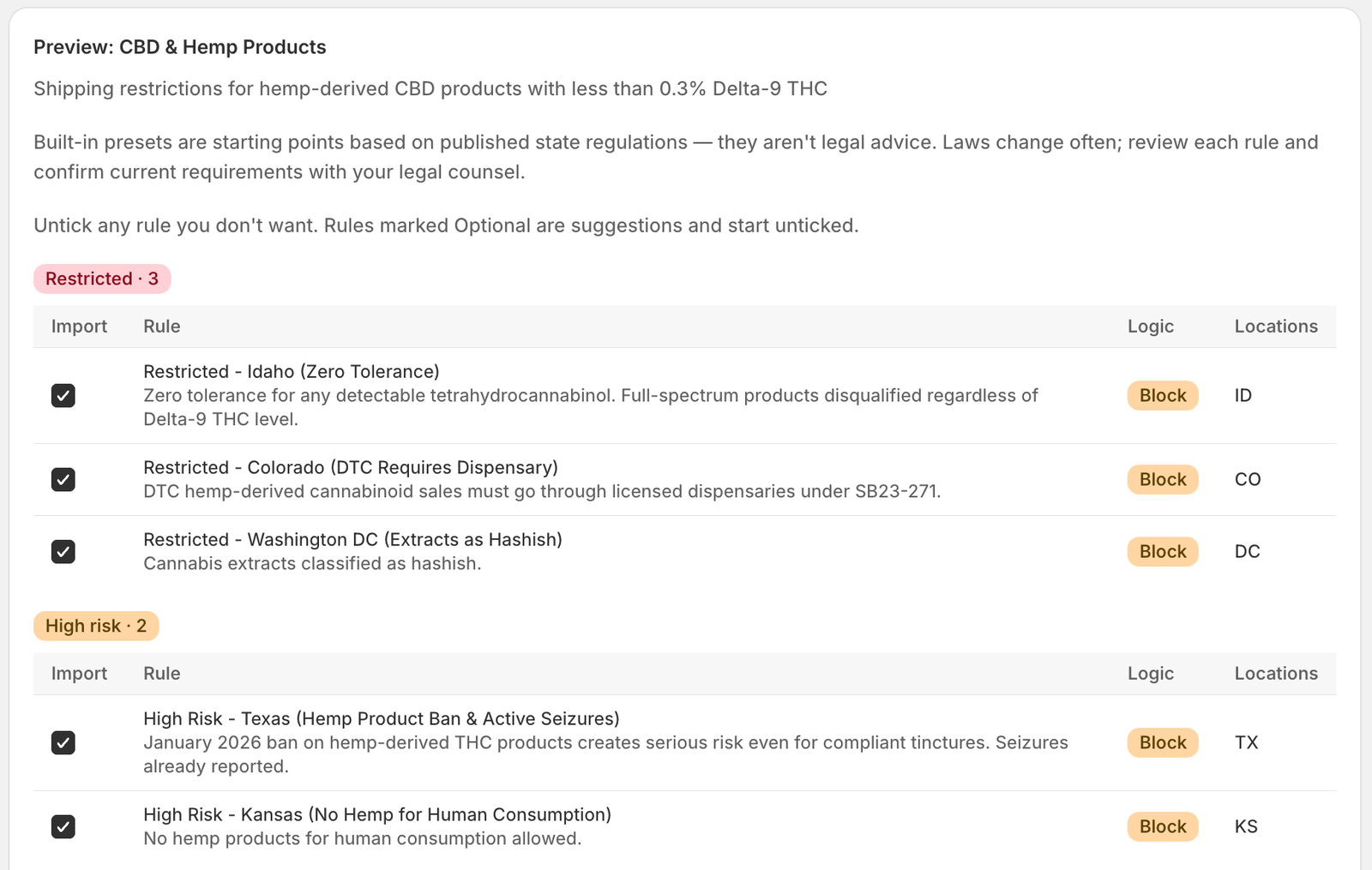
Rules are labeled Restricted, High risk, or Optional, with a note on the regulation behind each. Presets are starting points based on published state regulations, not legal advice. Laws change often, so review each rule and confirm current requirements with your legal counsel.
The same presets ship with the WooCommerce plugin, where the first is named "CBD/THC < .03%".
Importing a Preset
- Open Import & export
- Under Import rules, choose Built-in preset as the Source, then pick the Preset
- Click Preview import
- Review the preview. Rules are grouped by label, with each rule's logic, locations, and note.
- Untick any rules you don't want. Optional rules are suggestions and start unticked.
- Under How should these rules be added?, choose Add to my existing rules or Replace all my rules
- Click Import (the button shows how many rules are ticked)
A success banner confirms the import and that checkout is enforcing the new rules. You can then edit or delete imported rules like any other.
Exporting Rules
On Import & export, click Export rules under Export rules. Your browser downloads ship-restrict-rules-YYYY-MM-DD.json containing every rule, including its targets and notes. The block message isn't included.
Important: Uninstalling the app deletes your rules and settings. Export first if you might reinstall later.
Importing From a File
- On Import & export, choose Upload a .json file as the Source
- Choose the file
- Click Preview import, untick any rules you don't want, choose how to add them, and click Import
You can import exports from this app, the built-in preset files, and files exported from the WooCommerce plugin (see below).
If a file can't be imported, you'll see "The preset can't be imported" with the reasons, for example "That file isn't valid JSON." or a list of rules that failed validation. Nothing is imported unless every selected rule is valid.
Moving Rules Between Shopify and WooCommerce
Both platforms use the same file format, with a few catches:
- WooCommerce → Shopify: WooCommerce All Products rules import normally. Category and tag rules can't be imported, because WooCommerce categories and tags don't map to Shopify collections, and the whole file is refused while it contains any. Remove them from the file, import, then re-create them as collection- or tag-targeted rules in the app.
- Shopify → WooCommerce: every rule imports into WooCommerce as an All Products rule. Rules that targeted specific products, collections, tags, or product types lose that targeting and block more than before, so review them after importing.
File Format
Files have a preset section and a rules list:
{
  "preset": {
    "name": "Ship Restrict Export",
    "version": "1.0",
    "description": "Exported from example.myshopify.com",
    "industry": "custom",
    "last_updated": "2026-09-29"
  },
  "rules": [
    {
      "name": "No California Shipping",
      "type": "all",
      "logic": "block_from",
      "states": ["CA"],
      "state_cities": [],
      "zip_codes": [],
      "targets": {
        "type": "collections",
        "collections": [
          { "id": "gid://shopify/Collection/123", "title": "Magazines" }
        ]
      }
    }
  ]
}
preset.nameand theruleslist are required- Each rule has a
name,type(must beallon Shopify),logic(block_fromorallow_only),states,state_cities, andzip_codes targetsis optional and only used by the Shopify app. Itstypeisproducts,collections,tags, orproduct_types, with the matching list.- Optional
notesandseverity(restricted,high_risk,optional) are shown in the preview
Product and collection IDs only exist in the store they came from. Importing targeted rules into a different store needs those products and collections to be picked again.
Need help with a large catalog? Email support@shiprestrict.com.