Tracking Code in Google Analytics: A Practical Guide
Master the tracking code in Google Analytics. Learn to find, implement, and validate GA4 and GTM snippets for your WooCommerce store, ensuring accurate data.
You probably already have Google Analytics on your WooCommerce store. The code is installed, reports are populating, and traffic shows up in the dashboard. But if you sell regulated products, that doesn't answer the core question. Can you trust what it's measuring?
A firearms retailer doesn't just need to know which campaign brought in a visitor. You need to know where customers drop off around restricted items, whether a blocked order happened before or during checkout, and whether your store is capturing the events that matter for compliance and sales.
I've seen plenty of stores where analytics was technically installed but practically useless. The owner could see pageviews and maybe purchases, yet had no clean visibility into failed checkout attempts tied to shipping restrictions, product-specific friction, or rule-triggered customer exits. That's where the conversation around tracking code in Google Analytics changes. It stops being a basic setup task and becomes part of store operations.
If your store has to enforce location rules, age-related workflows, product restrictions, or checkout validation, your analytics setup needs to reflect that reality. A clean implementation helps you answer questions like these:
Automate Shipping Compliance
Block orders to restricted states automatically. 3-day free trial.
Start Free Trial- Blocked order visibility: Did the customer hit a shipping restriction message and leave?
- Restricted product behavior: Are shoppers viewing restricted items but abandoning before cart?
- Checkout integrity: Is
begin_checkoutfiring, but the final purchase event never arrives because compliance logic stopped the flow? - Campaign quality: Did that email campaign send qualified buyers, or just traffic that ran into state-level restrictions?
For a regulated WooCommerce store, bad analytics creates two problems at once. Marketing decisions get worse, and compliance friction stays hidden.
Your Guide to Google Analytics Tracking
A common situation looks like this. A store owner notices that traffic seems healthy, product pages are getting attention, but checkout numbers don't line up with what the team expected. Support tickets mention shipping restrictions. Some customers say they couldn't complete an order. The dashboard still looks normal enough to avoid immediate panic.
That gap is where many regulated stores operate for too long.
Google Analytics tracking code isn't just there to count visits. It's the mechanism that tells Google Analytics what happened on your site, when it happened, and in many cases where the visitor came from. If the setup is thin, mistimed, duplicated, or missing key events, the reports won't reflect what your business is experiencing.
Practical rule: If your store enforces rules that can stop a sale, you should track those moments as intentionally as you track the sale itself.
For firearms retailers using WooCommerce, that means the important signals often happen before a completed order. A visitor might land on a restricted product, add it to cart, begin checkout, then hit a shipping restriction based on state or ZIP. If analytics only records the pageview and misses the restriction event, you'll misread the problem as weak buying intent instead of compliance friction.
What busy store owners usually get wrong
Most problems come from one of these assumptions:
- "If Google Analytics is installed, everything important is tracked." It isn't. Installation gives you a foundation, not a finished measurement plan.
- "Checkout failures are obvious in WooCommerce orders." They're not, especially when the customer never reaches a valid order state.
- "Campaign reports explain sales quality." Only if your URLs are tagged correctly and the right events are firing on the site.
What good tracking gives you
When tracking code in Google Analytics is set up with your store's actual business rules in mind, you get a clearer operational view:
- Which traffic sources reach restricted products
- Where users encounter compliance barriers
- Whether checkout events are firing in the right order
- Which actions are missing from reports because implementation is incomplete
For regulated eCommerce, that's the difference between guessing and managing.
Free Shipping Compliance Audit
We'll review your WooCommerce store's shipping compliance for free.
What Is a Google Analytics Tracking Code
Think of the tracking code as a digital messenger. It sits on your website, watches for defined user activity, and sends that information back to Google Analytics. Without that messenger, Google Analytics has nothing to report.
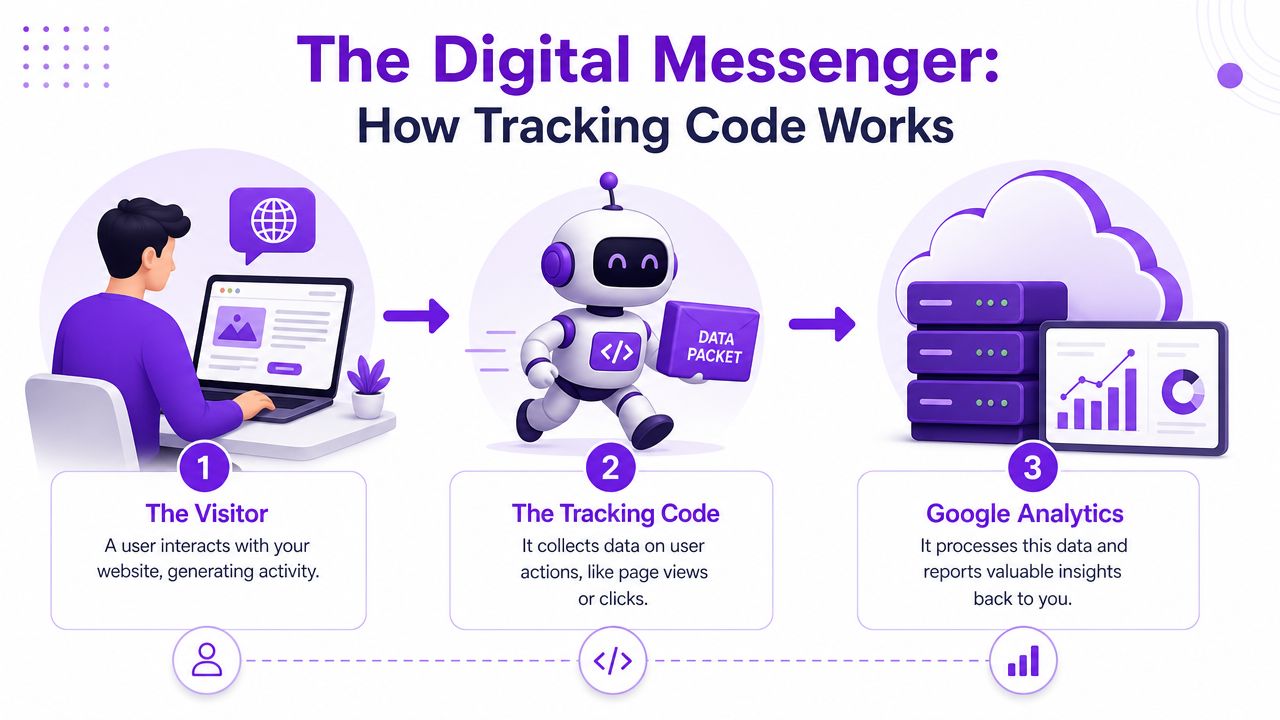
When someone loads a product page, clicks a button, scrolls, or completes another tracked action, the code sends that interaction to your analytics property. On a simple brochure site, that may be enough. On a WooCommerce store selling regulated goods, that messenger needs better instructions. It should report not only product interest and checkout behavior, but also the moments where business rules interrupt the journey.
Why GA4 changed the conversation
Google's modern tracking model changed when Google Analytics 4 launched on October 14, 2020, introducing an event-based property model instead of the older session and pageview framework, as described in this GA4 tracking overview. That matters because GA4 treats user interactions as events. Those can include page views, clicks, scrolls, and conversions.
For store owners, the practical difference is huge. The older model was more rigid. GA4 is better suited to capturing detailed actions across devices and traffic sources because the setup revolves around events rather than a narrow page-centric structure.
In plain terms, that's why GA4 fits regulated WooCommerce stores better. You can track standard commerce actions, but you can also define custom events around real compliance moments such as a shipping restriction warning, an attempted purchase of a restricted item, or a checkout stop triggered by store rules.
The code itself isn't the strategy. It's the transport layer for the strategy.
Tracking ID versus Measurement ID
Older Google Analytics setups used the idea of a tracking ID. In GA4, that has been replaced by a Measurement ID. If you've been around long enough to remember Universal Analytics, this is one of the easiest places to get confused.
Here's the practical distinction:
| Term | Where it belongs | What it tells you |
|---|---|---|
| Tracking ID | Legacy Universal Analytics language | Older setup model |
| Measurement ID | GA4 | Current identifier used for a GA4 web data stream |
| Google tag | Your site code | The script that sends data to GA4 |
For a store owner, the takeaway is simple. If you're working in GA4, you should be looking for the Measurement ID, usually starting with G-, and the installed Google tag that uses it.
What the code does not do by itself
The code doesn't automatically understand your business logic. It won't know that a blocked cart matters more than a generic button click unless someone configures that event. It also won't fix weak attribution, duplicated installs, or missing checkout steps.
That's why stores with regulated products need more than a basic paste-and-forget install. The code must be present, but it also has to be connected to the events that reflect how your store really works.
Finding Your GA4 Measurement ID and Google Tag
If you need to verify your setup, start with the two essentials: the Measurement ID and the full Google tag snippet.
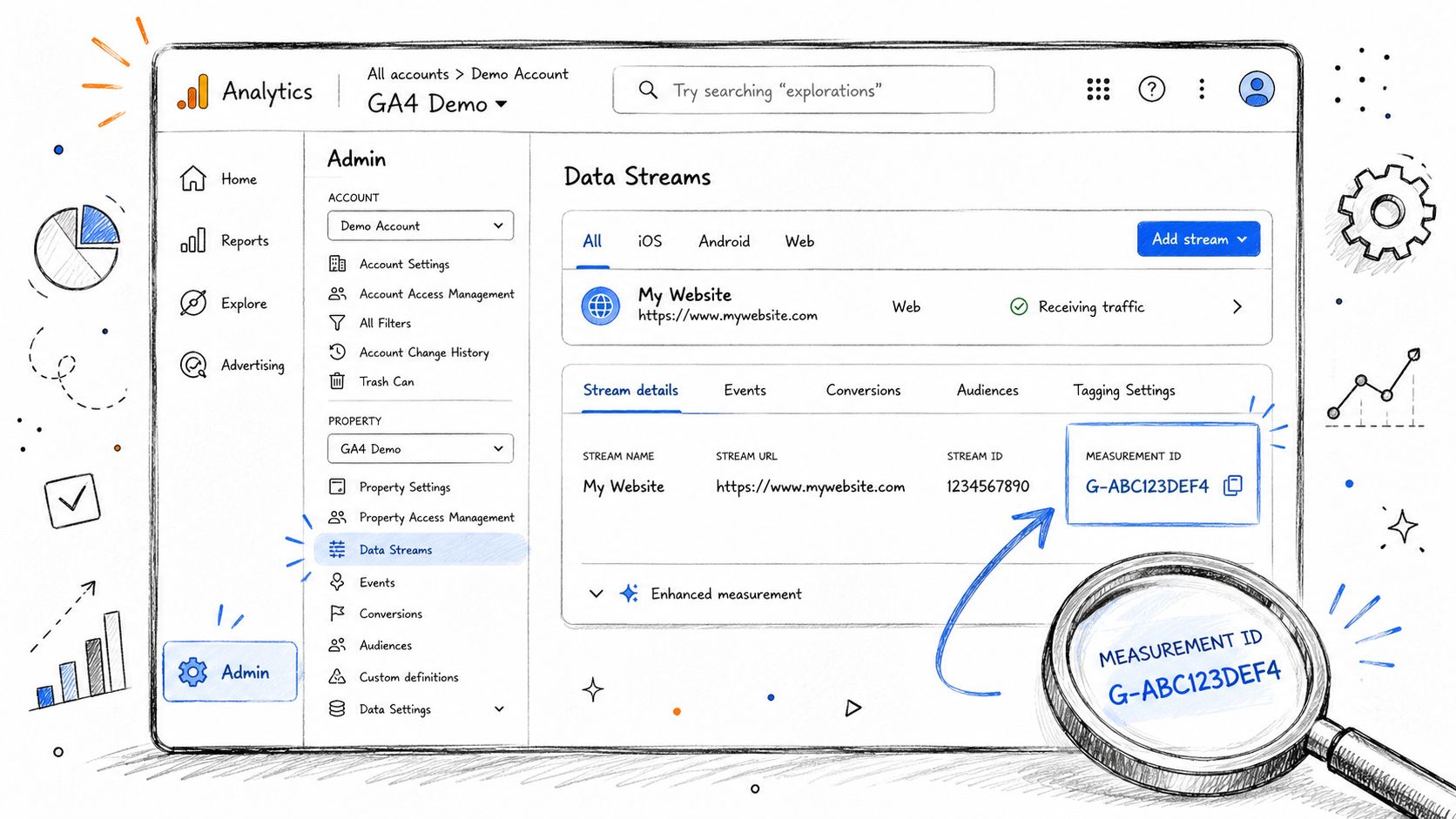
Google states that in GA4, the old tracking ID has been replaced by a Measurement ID that typically starts with G-, and you can find it in Admin → Data streams → select the web stream → Stream details, according to Google's setup instructions. The same guidance explains that if your CMS doesn't provide a native field, you should paste the full Google tag snippet into custom HTML immediately after the <head> tag on every page.
Where to click in GA4
Use this sequence inside your GA4 property:
- Open Admin
- Click Data streams
- Select your web stream
- Open Stream details
- Copy the Measurement ID that starts with
G-
That G- code identifies the web stream your site should be sending data to. If the wrong one is installed, your reports can populate in the wrong property or not populate where you expect.
For many WooCommerce sites, that's all you need if your analytics plugin asks only for the Measurement ID. If you need the full script, open the tag installation instructions in the stream and copy the whole Google tag.
When the full tag matters
Some WordPress themes and plugins provide a dedicated analytics field. Others don't. On custom or heavily modified WooCommerce builds, developers sometimes need to place the full tag manually in the site's header area.
If you're still deciding how to approach the overall setup, this walkthrough on how to set up Google Analytics 4 is a useful companion for the broader property and installation flow.
A lot of store owners also end up installing analytics through a plugin rather than editing theme files directly. If that's your route, a practical primer on adding a plugin in WordPress helps avoid basic installation mistakes before you even get to analytics settings.
Verify before you move on
Don't stop after copying the ID. Confirm three things:
- The ID matches the intended property: Agencies and multi-store operators often mix these up.
- The tag exists on every page: Home page only is not enough.
- Only one implementation method is active: A plugin plus manual code often creates duplicate tracking.
Watch the interface if you prefer a visual walk-through.
<iframe width="100%" style="aspect-ratio: 16 / 9;" src="https://www.youtube.com/embed/HRbgN58uA3o" frameborder="0" allow="autoplay; encrypted-media" allowfullscreen></iframe>For regulated stores, this step is more than housekeeping. If the foundation is wrong, every compliance event you add later will be unreliable.
How Google Analytics Tracking Actually Works
Once the tag is installed, the browser starts doing the work. A page loads, the tag runs, and Google Analytics receives information about that visit and the actions tied to it. In practice, that means your reports are built from a stream of site interactions sent from the visitor's browser to Google's systems.
For a WooCommerce store, those interactions can include product views, cart activity, checkout starts, and custom actions defined by your implementation. In GA4, those are handled as events. That event model is what makes the platform useful for stores with more complicated purchase paths.
Events are the raw material
A product page view is one event. A click on an "add to cart" button can be another. A checkout initiation is another. If your store uses custom logic around restricted shipping regions, you can also send an event when the customer runs into that restriction.
The event isn't just a name. It can carry context through parameters. That's where implementation starts getting useful. Instead of only seeing that something happened, you can structure the event so the report also reflects which product category, which store condition, or which checkout state was involved.
A pageview tells you where someone was. A custom event tells you what happened there.
For a firearms retailer, that's the difference between "traffic reached the cart" and "traffic reached the cart, then hit a restricted shipping rule on a regulated item."
Attribution depends on URL tagging
Campaign attribution works differently from on-page tracking code. The key campaign details don't live inside the Google tag. They're passed through the link itself.
Bruce Clay notes that campaign tracking parameters are appended to the destination URL, and that UTM-style parameters should be used for links from owned or managed campaigns like email, banners, or social posts in order to pass source, medium, and campaign details into Google Analytics. That's covered clearly in Bruce Clay's guide to Google Analytics tracking codes.
That means GA4 only reports campaign dimensions that were included in the clicked URL. If your email links are tagged consistently, the attribution is clearer. If your team sends untagged links, the reports become less useful fast.
How this plays out in a regulated store
A realistic funnel might look like this:
- A customer clicks a tagged email link: GA4 receives the campaign context from the URL.
- The customer views a restricted product: The pageview and product interaction events begin building behavior data.
- They add the item to cart: The next event shows buying intent.
- A shipping rule interrupts checkout: A custom event records the compliance barrier.
- No purchase follows: The funnel now tells a meaningful story instead of just ending in ambiguity.
If you're tightening up event naming and business goals, Rebus's Analytics goals optimization guide is a good reference point for turning general tracking into reporting you can manage.
What doesn't work well
Three things usually break the picture:
| Problem | What it causes |
|---|---|
| Missing event definitions | Important actions never appear in reports |
| Weak UTM discipline | Traffic source reports lose context |
| Generic setup only | Compliance friction stays invisible |
Google Analytics can only report what your implementation sends. That's why good tracking code in Google Analytics isn't about installing a script once. It's about deciding which interactions deserve to be measured, then making sure they arrive with enough context to matter.
Critical Tracking Use Cases for WooCommerce Retailers
A regulated WooCommerce store shouldn't measure only revenue events. It should also measure the actions that explain why revenue did or didn't happen.
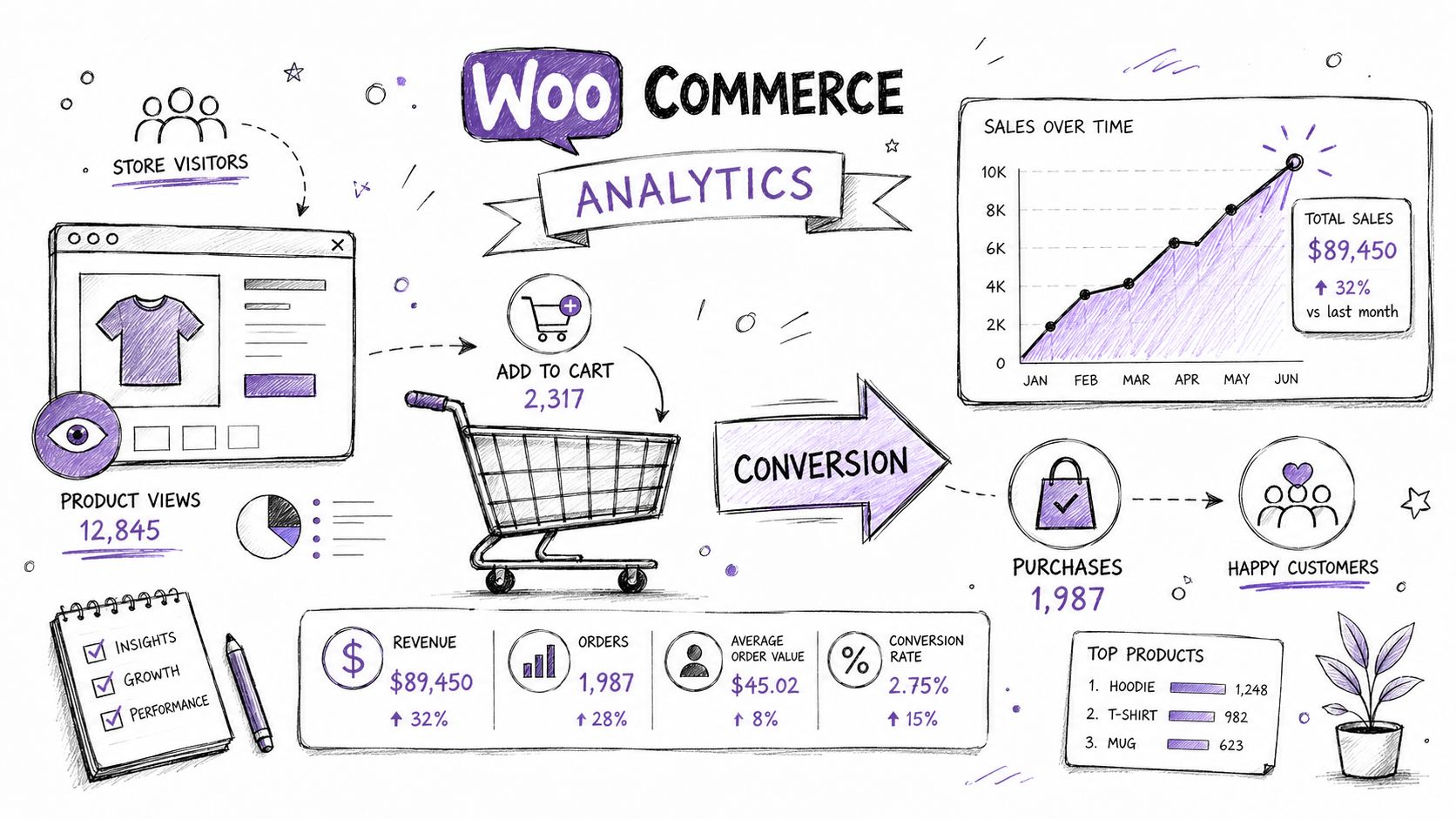
For firearms retailers, standard eCommerce tracking still matters. You want visibility into product views, add-to-cart behavior, checkout starts, and completed purchases. But that only covers part of the business. The more valuable layer is the one that captures restricted behavior, blocked actions, and drop-off tied to compliance logic.
The events that usually matter first
Start with the obvious commercial journey, then add the regulated layer on top.
- Product engagement: Track product detail views and category browsing, especially for regulated items.
- Cart intent: Record add-to-cart actions so you can see interest before checkout.
- Checkout starts: Watch for
begin_checkoutto confirm customers are attempting to buy. - Purchase completion: Capture successful orders, but don't make this your only success signal.
That gives you a baseline funnel. For many stores, the bigger insights show up after that.
Compliance events are where the hidden losses are
A firearms retailer often needs to know about actions that never become orders. These are the moments that basic analytics setups miss:
- Blocked shipping attempt: Customer enters an address that can't receive the product.
- Restricted item friction: Customer lands on a product they can browse but can't purchase in their jurisdiction.
- Rule-triggered checkout exit: A compliance check stops progress before payment completes.
- Message exposure: Customer sees a restriction notice but leaves without changing cart contents.
Those are not edge cases in a regulated store. They're part of the normal customer journey.
If a restriction prevents a sale, that prevention is a measurable event, not a support issue to discover later.
A practical event plan for firearms retailers
Here's a simple way to think about event design:
| Event idea | Why it matters | Useful context to pass |
|---|---|---|
| restricted_product_view | Shows interest in controlled inventory | Product type or category |
| shipping_restriction_triggered | Identifies blocked fulfillment paths | State, region, or rule label |
| blocked_checkout_attempt | Marks compliance-related checkout failure | Checkout step, cart type |
| restriction_message_seen | Tells you whether buyers were warned before exit | Message type or rule source |
You don't need to over-engineer this on day one. You do need to define these moments clearly enough that developers can fire them consistently.
WooCommerce-specific reality
WooCommerce stores often rely on multiple plugins for payments, fulfillment, taxes, and compliance. That creates event gaps. One plugin may trigger native commerce events cleanly, while another handles restrictions in a way that never reaches GA4 unless you wire it explicitly.
That's why plugin selection matters. If you're comparing store tooling more broadly, this roundup of WooCommerce restriction plugin options is relevant because restriction logic and analytics visibility often need to work together.
In that context, Ship Restrict is one option that automates shipping restriction enforcement for regulated WooCommerce products, including firearms, by applying location-based rules before checkout. For analytics purposes, tools in that category are useful because they create clear restriction moments that can be turned into trackable events if your implementation is planned properly.
What works and what doesn't
What works:
- Defining compliance events before launch
- Mapping events to real customer decision points
- Testing restricted and non-restricted paths separately
What doesn't:
- Tracking only completed orders
- Treating blocked carts as invisible failures
- Assuming WooCommerce plugins automatically send meaningful analytics events
For regulated retail, the best reporting often comes from the actions that never become transactions.
Implementation and Troubleshooting Your Tracking Code
There are three practical ways to install tracking code in Google Analytics on a WooCommerce site. All of them can work. They don't all scale equally well.
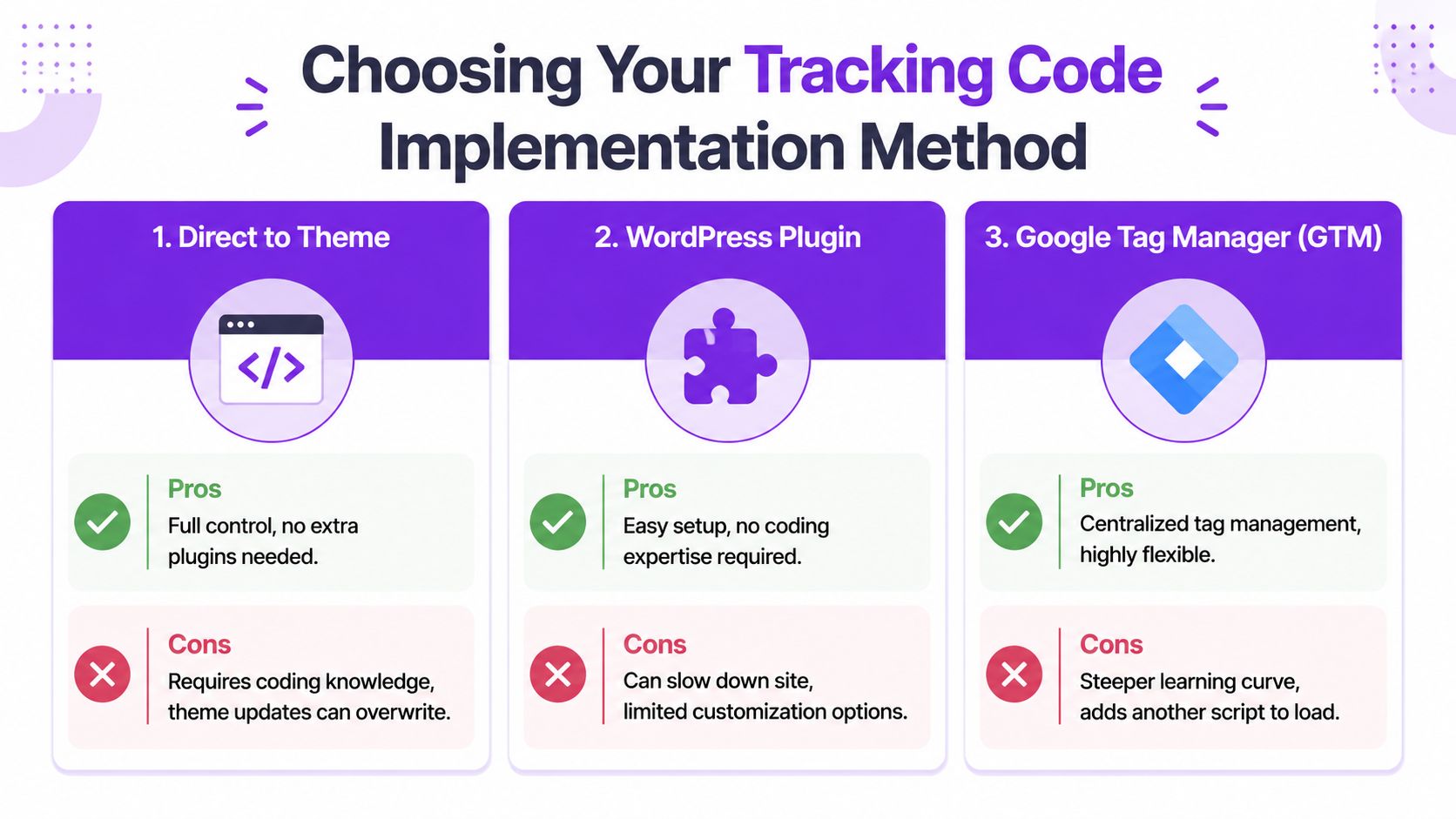
Option one, direct theme installation
This means placing the Google tag directly into the site's theme or custom header output.
What works well: It's clean, direct, and doesn't require another plugin layer.
What breaks later: Theme updates, child-theme mistakes, and limited flexibility once you need custom events, ads tags, or more advanced logic.
For a very simple store, this can be enough. For a regulated store with custom checkout conditions, it usually becomes restrictive.
Option two, WordPress plugin installation
Many WooCommerce operators prefer a plugin that asks for the GA4 Measurement ID and handles the insertion automatically.
That approach is easier for non-developers and faster to maintain. The downside is control. Some plugins only handle the base tag well. Once you need custom compliance events, debugging gets harder because the abstraction hides what the site is really outputting.
Option three, Google Tag Manager
For stores that need flexibility, Google Tag Manager is usually the better long-term choice. It gives you one place to manage analytics and related tags, and it's better suited to custom events like blocked checkout attempts or restriction-triggered messages.
It does add complexity. Someone has to understand triggers, variables, and testing discipline. But for stores with evolving requirements, that trade-off is usually worth it.
GTM isn't automatically simpler. It's more controllable.
Placement and firing order matter
A lot of tracking problems aren't caused by missing code. They're caused by poorly placed or late-firing code.
Existing coverage notes that the Google Analytics code should be placed just after the opening <head> tag because placing it in the footer or elsewhere can miss pageviews when users leave early. The same discussion also notes that in GTM, the GA4 config tag should fire on All Pages and before other events, and that slow page load can contribute to missing attribution and unassigned traffic, as summarized in this review of common Google Analytics tracking mistakes.
For busy store owners, the lesson is simple. "Installed" isn't the same as "firing correctly and early enough."
Common failures to check first
If reports look wrong, start with these:
- Duplicate code: A plugin and manual tag are both active.
- Wrong property: The Measurement ID points to another GA4 property.
- Incomplete site coverage: The tag exists on some templates but not all.
- Bad trigger setup in GTM: The base tag doesn't fire across the whole store.
- Missing custom event hooks: Restriction logic happens in WooCommerce, but nothing sends the event to GA4.
How to validate the setup
Use a short test routine whenever you install or change anything:
- Visit the site yourself and check the Realtime report in GA4.
- Trigger normal store actions like product views and cart adds.
- Test a restricted path using a blocked shipping scenario.
- Confirm the expected events appear in your debugging tools and in GA4.
- Remove duplicate scripts before looking at any report trend.
If you're troubleshooting a store-level behavior issue, the Ship Restrict troubleshooting documentation is useful for isolating whether the restriction logic itself is firing as expected before you blame analytics.
The trade-off that matters most
If you only need page-level measurement, a plugin or direct install may be fine. If you need to track compliance workflows, blocked orders, and custom WooCommerce conditions, GTM usually gives you the cleaner operational path.
The bigger mistake is not choosing the "wrong" method. It's installing one method, never validating it, and assuming the reports are trustworthy.
Best Practices for Privacy and Compliance
A regulated store already operates under more scrutiny than a general eCommerce shop. Your analytics setup should reflect that. Good tracking isn't just about collecting more data. It's about collecting the right data, with the right controls.
The first rule is simple. Don't send personally identifiable information into Google Analytics. That includes anything in URLs, event labels, form fields, or custom parameters that could identify a person directly. It's easy for stores to leak this accidentally through search terms, checkout fields, or custom event payloads if nobody reviews the implementation carefully.
Consent should control firing
If your store serves jurisdictions where user consent matters, your tracking setup should respect that before tags run. That usually means using a consent management platform so analytics scripts don't fire before the visitor's choice is captured.
For regulated retailers, this is partly legal hygiene and partly trust. Customers are already sensitive about what they're buying, where it ships, and how that information is handled. If your site feels careless with data collection, that hesitation can affect sales just as much as it affects compliance posture.
Keep the policy tied to the implementation
A privacy policy shouldn't be generic boilerplate that has no relationship to what your store tracks. Your legal and technical teams should be aligned on what data is collected, when tags fire, and how customer behavior data is handled. If you need a plain-language example of policy structure and user-data handling language, this reference on user data management and privacy policy content is a useful baseline.
The practical standard for firearms retailers
Use analytics to understand behavior. Don't use it to collect anything you don't need.
That means:
- Track business actions, not personal identity
- Gate analytics with consent where required
- Review custom events before launch
- Keep restriction and checkout tracking tightly scoped to operational needs
A clean analytics setup helps you run the store better. A careless one creates risk you didn't need.
If you're running WooCommerce with regulated products and need cleaner visibility into blocked orders, restriction-driven checkout drop-off, or compliance-related customer behavior, Ship Restrict is worth a look. It helps merchants enforce shipping rules before checkout, and that kind of structured restriction logic makes it easier to build analytics around the moments that affect compliance and sales.
Automate Shipping Compliance
Stop worrying about restricted states. Ship Restrict handles it automatically.

Cody Yurk
Founder and Lead Developer of ShipRestrict, helping e-commerce businesses navigate complex shipping regulations for regulated products. Ecommerce store owner turned developer.
Automate Shipping Compliance
- Block restricted states
- No more cancellations
- Set and forget
3-day free trial · Card required