A Practical Guide to Multi-Store WooCommerce Shipping Rules Sync
Struggling with compliance? Learn how a multi-store WooCommerce shipping rules sync can automate your operations, reduce errors, and save countless hours.
Running multiple WooCommerce stores for regulated products like firearms is a high-stakes game. If you don't have a central system for your shipping rules, you're stuck updating each site one by one. This manual grind inevitably leads to compliance gaps, canceled orders, and customers you just can't please.
For businesses in this space, a multi-store WooCommerce shipping rules sync isn't just a nice-to-have. It's an absolute necessity for staying legal and keeping your operations from spiraling into chaos.
The Hidden Costs of Unsynced Shipping Rules
When your shipping rules are siloed, every little legal update becomes a minefield. A simple change—say, a new state restriction on ammunition sales—forces you to log into several different dashboards, hoping you replicate the rule perfectly every time. The risk of human error isn't just a possibility; it's practically a guarantee. One missed update on one store is all it takes for a non-compliant shipment to slip right through.
This isn't just some theoretical headache. The consequences are real, tangible, and expensive, especially when you're selling tightly regulated products.
Automate Shipping Compliance
Block orders to restricted states automatically. 3-day free trial.
Start Free TrialA Real-World Scenario
Picture a firearms dealer with three separate WooCommerce storefronts: one for retail customers, a wholesale portal for other dealers, and a third for law enforcement contracts. Out of the blue, a new county ordinance bans shipping certain firearm accessories to a specific list of ZIP codes. The compliance manager gets the alert, updates the retail site, but completely forgets to apply the same restriction to the wholesale portal.
A few days later, a wholesale order from that restricted county gets processed, packed, and shipped. The carrier flags the package, it gets sent back, and now the dealer is staring down a compliance violation. The immediate fallout is painful:
- Financial Penalties: You're hit with chargebacks, return shipping fees, and the costs of restocking the items. It adds up fast.
- Customer Dissatisfaction: The wholesale customer is angry, their order is stuck in limbo, and your reputation takes a hit.
- Operational Chaos: Your team now has to waste hours tracking down the shipment, figuring out what went wrong, and plugging the rule gap that caused it.
A single mistake on one store creates a compounding problem when you have several. What starts as one incorrect order can quickly snowball into dozens, eating into your profits and putting your business license on the line.
For US-based firearms and ammo sellers, a single non-compliant shipment can trigger chargebacks and reshipment costs of $50–$150 per order. That’s before you even consider potential fines or legal fees. It's not uncommon for multi-store operators to see 1–3% of all orders hit a compliance snag. If your network processes 3,000 orders a month, that's 30 to 90 risky transactions hitting your bottom line every single month. You can find more insights on multi-carrier shipping solutions on 1teamsoftware.com.
Without a synchronized system, you're not just managing shipping—you're playing a high-stakes game of operational roulette, and the odds are not in your favor. This is precisely why establishing a single source of truth for your shipping rules is the first critical step toward building a scalable and compliant multi-store operation.
Choosing Your Sync Strategy
Deciding how to sync shipping rules across multiple WooCommerce stores really boils down to your technical resources, budget, and how fast you need things to work. You're essentially weighing the classic dilemma of custom software vs off-the-shelf software. Each approach comes with its own trade-offs on implementation headaches, long-term upkeep, and whether you get real-time updates.
This decision tree shows you exactly what happens when your shipping rules fall out of sync. It’s a direct path to compliance errors or, worse, canceled orders.
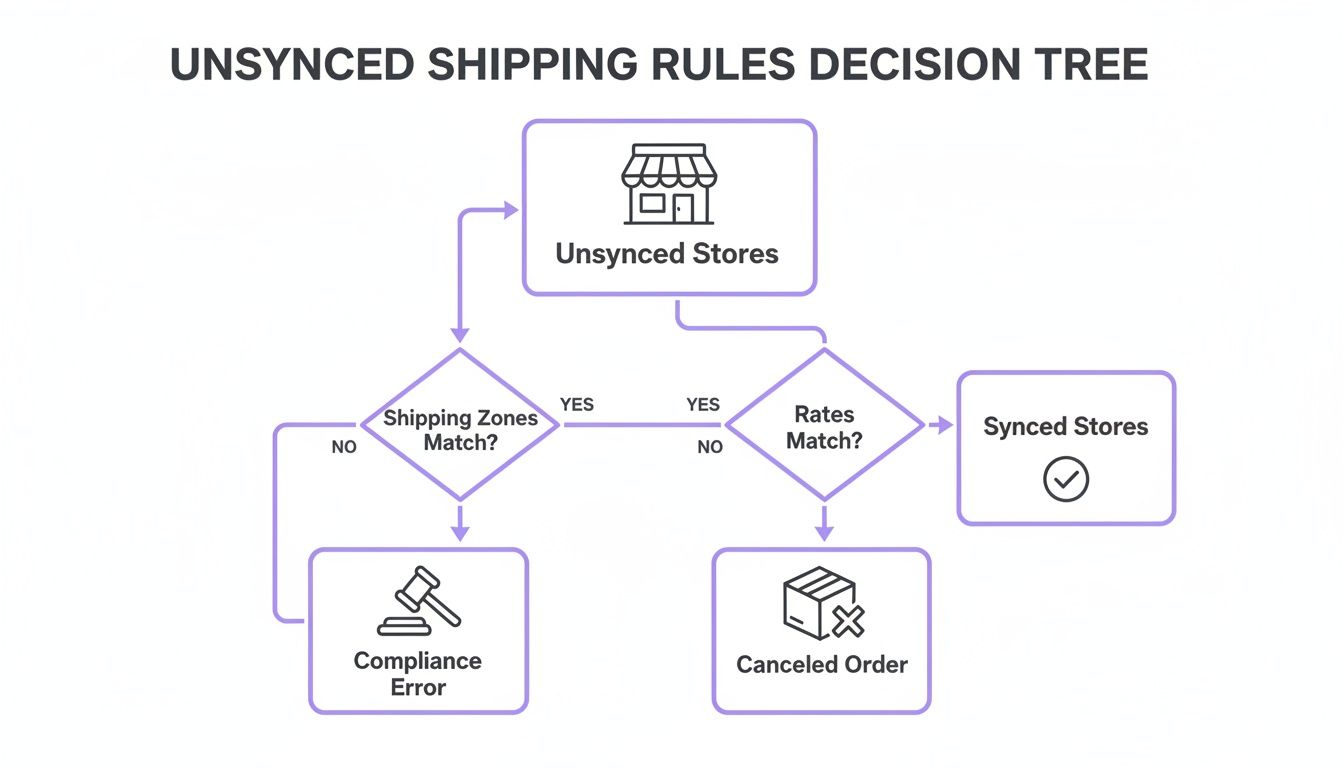
The flowchart drives home a critical point: without a solid sync strategy, every single order is a potential landmine. Let's break down the best ways to keep everything aligned and avoid those problems.
Comparison of Shipping Rule Sync Methods
Before we dive deep, this table offers a quick, at-a-glance comparison of the most common methods. It's a great starting point for seeing which path might be the best fit for your business.
Free Shipping Compliance Audit
We'll review your WooCommerce store's shipping compliance for free.
| Method | Best For | Implementation Effort | Maintenance Level | Real-Time Sync |
|---|---|---|---|---|
| Dedicated Plugin | Most businesses needing a reliable, out-of-the-box solution. | Low | Low | Yes |
| Custom REST API | Large operations with unique needs and in-house developers. | High | High | Yes |
| WordPress Multisite | Admins who want centralized management but need another tool for sync. | Medium | Medium | No (requires add-on) |
| Manual Import/Export | Small setups (2-3 stores) with static, rarely-changing rules. | Low | High (Manual) | No |
Each option has its place, but as you can see, the trade-offs in effort and capability are significant. Now, let's explore what each of these really entails.
Dedicated Plugin Solutions
For the vast majority of store owners, a dedicated plugin is the most straightforward and effective route. Purpose-built tools like Ship Restrict are designed specifically for this job, offering a nearly plug-and-play experience that sidesteps massive development costs. The setup is simple: you designate one store as the "master" and link your other "child" stores using secure API keys.
This method really shines in its simplicity and dependability. You can schedule updates to run automatically, ensuring your entire network stays compliant with almost no manual effort. If your main goal is a fast, stable, and professionally supported solution without keeping a developer on payroll, this is your answer. For a closer look at the tools out there, our best shipping restriction plugins for WooCommerce guide breaks it all down.
Custom REST API Integration
If you have very specific business logic or an in-house development team, building a custom solution using the WooCommerce REST API gives you total control. This path involves creating your own endpoints on a master store to serve up your shipping rules. Your other stores then use custom scripts to pull that data and apply it.
While this offers unmatched flexibility, it also comes with the heaviest technical lift. You're on the hook for everything—building the endpoints, handling errors, securing the API, and maintaining the code as WooCommerce evolves. This is really best suited for large-scale businesses whose unique requirements can't be met by off-the-shelf software.
Key Takeaway: A custom API sync is powerful but demands significant development and maintenance resources. A dedicated plugin offers 80% of the functionality with only 20% of the effort, making it a more practical choice for most store owners.
WordPress Multisite Configuration
Running your stores on a WordPress Multisite network is great for centralizing user management and plugin updates. However, it's important to understand that it does not automatically sync WooCommerce settings like shipping rules between the individual sites in your network.
Each site still operates as an independent store with its own set of configurations. To get your rules in sync, you’d still need an additional plugin or custom code designed to work within the Multisite environment. So, while it simplifies some administrative tasks, Multisite alone doesn't solve the core sync problem.
Manual Rule Import and Export
The most basic method—and I mean basic—is manually exporting your shipping rules from a master store as a CSV file, then importing that file into each of your child stores. This approach costs nothing and doesn't require any technical skills beyond using the tools already built into WooCommerce.
The downside? It's not scalable. The process is entirely manual, incredibly tedious, and wide open to human error. Its practicality falls off a cliff once you have more than two or three stores or if your rules change more than once a year. It's a workable starting point for a tiny network with static rules, but it’s definitely not a sustainable long-term solution.
Setting Up Sync with a Dedicated Plugin
For most folks running multiple stores, grabbing a dedicated plugin is the simplest and most reliable way to get a multi-store WooCommerce shipping rules sync up and running. This route completely sidesteps the steep costs and technical headaches of a custom build, giving you a solution that just plain works. Tools like Ship Restrict are built from the ground up for exactly this scenario, using a clear master-and-child store setup.
First, you'll pick one of your WooCommerce sites to be the "master" store. This site becomes your single source of truth—the command center where you'll create, tweak, and manage every shipping rule for your entire network. All your other stores are then set up as "child" stores.
These child stores don't get a say in the rules. Instead, they use a secure API key to phone home to the master store and pull down the latest rule sets on a schedule you define. It's an architecture that guarantees consistency and kills the risk of human error that always creeps in with manual updates.
Establishing the Master and Child Connection
The magic of this whole setup is the secure handshake between your master and child stores. After installing the plugin on all your sites, you’ll head over to the settings on your master site to generate unique API keys for each child store.
Think of these keys as a secure password that authorizes a child store to access and copy the master rule list. It’s a straightforward but incredibly effective way to control the flow of data. You can create, revoke, and manage keys for each store on its own, giving you precise control over your network.
This diagram shows the basic idea: the master server hands out secure API keys, distributing rules to multiple child servers to keep everything in sync.
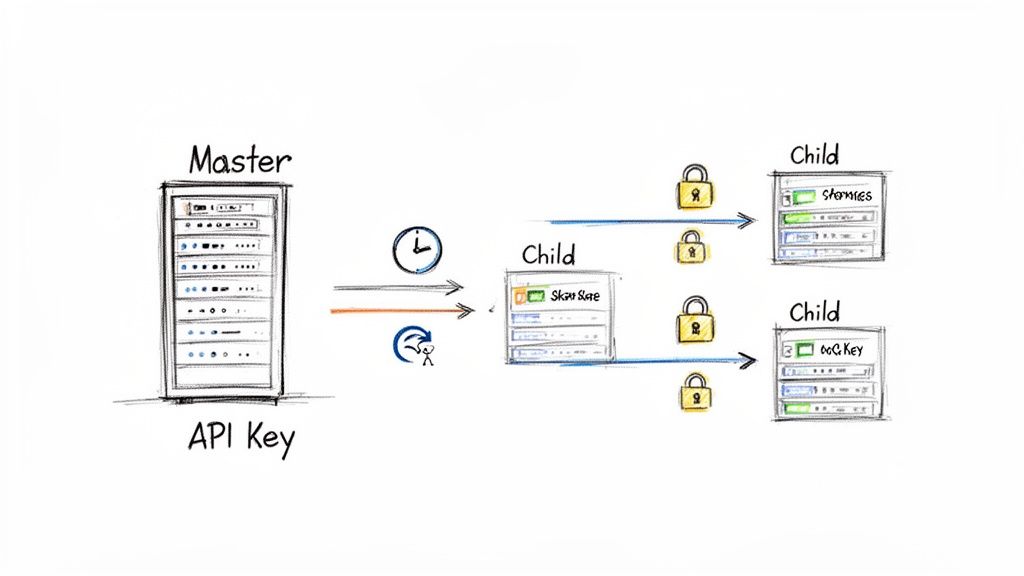
Once a key is generated on the master, you just copy and paste it into the plugin settings on the corresponding child site. That one-time setup creates a permanent link for all future updates.
Configuring Sync Frequency and Notifications
With the connection locked in, the next step is deciding how often the sync happens. Any good plugin will give you clear scheduling options instead of leaving it to guesswork. You can typically set the sync to run at different intervals, like:
- Hourly: Perfect for highly regulated products where compliance rules can change on a dime.
- Twice Daily: A solid middle ground that pushes updates out quickly without constantly pinging your server.
- Daily: Works for most businesses with fairly stable shipping regulations.
This automation is where a dedicated plugin really shines. You set the schedule once, and the system takes it from there, making sure your whole network stays compliant without you lifting a finger. It's a much more dependable strategy than trying to keep up with manual updates, especially if you have a ton of rules. If you're just getting started, check out our guide on how to bulk import shipping restrictions from a CSV file to get your master store populated in minutes.
Pro Tip: Always turn on failure notifications. A solid plugin will shoot you an email if a child store fails to sync with the master. This early warning lets you look into potential problems—like a server hiccup or an expired API key—before they turn into real compliance gaps.
By using this master-child model with a dedicated plugin, you're building a tough, automated, and scalable system for managing your WooCommerce shipping rules. It’s a solution that can grow right alongside your business, giving you peace of mind and freeing up your team to focus on sales instead of tedious admin work.
Building Your Own Custom API Sync Solution
<iframe width="100%" style="aspect-ratio: 16 / 9;" src="https://www.youtube.com/embed/vBaMfam2ACc" frameborder="0" allow="autoplay; encrypted-media" allowfullscreen></iframe>When off-the-shelf plugins just don’t cut it for your unique business logic, rolling up your sleeves and building a custom solution with the WooCommerce REST API gives you ultimate control. This path is perfect for businesses with development talent in-house who need a multi-store WooCommerce shipping rules sync that fits their operational workflow like a glove.
The big idea is pretty straightforward: you designate one of your stores as the "master" or single source of truth for all shipping rules. This master store doesn't just hold the rules; it serves them up through a secure, custom API endpoint. Your other "child" stores then run scripts—often triggered by WP-Cron—to regularly check this endpoint, grab the latest rule set, and update their own configurations.
Architecting Your Custom Endpoints
First things first, you'll need to create custom REST API endpoints on your master store. This is done by using the register_rest_route() function, either in your theme’s functions.php file or, even better, a custom plugin. The callback function for this new route is where the magic happens—it’s responsible for pulling your shipping rules from the database and packaging them into a clean JSON object.
A well-structured JSON response is non-negotiable; it makes parsing the data on the child stores a breeze. Your output should contain everything needed to rebuild the rule, something like this:
- Rule ID: A unique identifier for the rule.
- Conditions: An array of conditions, like
state,zip_code, orproduct_category. - Actions: The specific restriction or shipping change to apply.
- Last Modified Date: A timestamp that helps child stores quickly spot new updates.
As you build out your API, sticking to established API design best practices is critical. It’s what separates a robust, scalable integration from a clunky one that will become a maintenance headache as your business grows.
Scripting the Child Store Sync
Over on each child store, you need a script to handle the other side of this conversation. This script will authenticate with the master store (typically using WooCommerce API keys) and send a GET request to your new custom endpoint. Once it gets the JSON data back, the script’s job is to process it intelligently.
This isn't just about dumping data from one place to another. The script needs to validate the incoming rules to make sure malformed data doesn't crash the site. It also needs to handle all the standard CRUD operations: creating new rules, updating existing ones, and—this is a big one—deleting rules that are no longer on the master store. Skipping that last step is a common mistake that leaves obsolete restrictions lingering on your child sites.
Crucial Tip: Implement robust error handling and logging from day one. Your script should log every sync attempt, noting successes, failures, and any data validation problems. If the connection to the master store fails for any reason, the child store must be programmed to keep its existing rules and fire off an alert to an admin. This safety net prevents a temporary network blip from wiping out all your shipping restrictions.
How to Test and Troubleshoot Your Sync
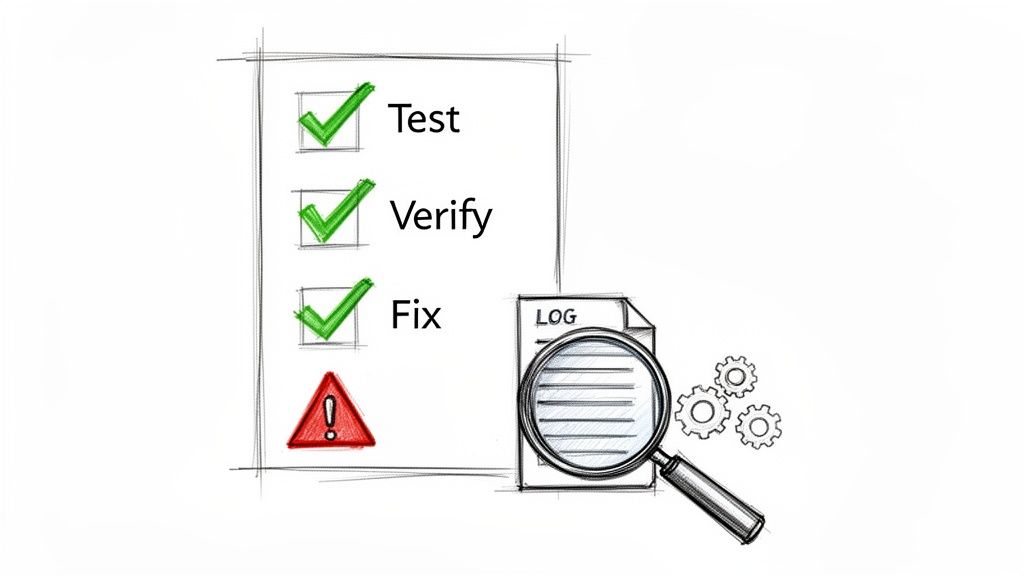
A silent sync failure can be a disaster. If rules don't propagate correctly, you end up with compliance gaps that lead to canceled orders, angry customers, and lost revenue. Before you even think about going live with a multi-store WooCommerce shipping rules sync, you need a rock-solid testing plan. This isn't just about checking a box; it's about making sure the system won't break when you need it most.
Start by locking down your connections. Never use weak API keys or, even worse, reuse the same key across multiple child stores. The best practice is to generate a unique, complex key for each individual store connection. If your hosting setup allows it, take the extra step of whitelisting the IP addresses of your child stores on the master server. This creates a secure tunnel that helps block unauthorized access to your rule data.
Pre-Launch Testing Checklist
Once your sync is configured, it's time to put it through its paces in a staging environment. Don't just check if a single rule syncs—you need to push the system to its limits by simulating the real-world scenarios that could trip it up down the line.
Your pre-flight checklist should cover these critical verifications:
- Rule Creation: Add a brand new, easily identifiable rule on the master store. Trigger a manual sync and then go confirm it appears correctly on all child stores.
- Rule Modification: Pick an existing rule and edit its conditions on the master. Did the changes propagate and completely overwrite the old version on the child stores?
- Rule Deletion: This one is absolutely critical. Delete a rule from the master store and make sure it is completely removed from every child store after the next sync runs.
- Edge Case Testing: Now, get creative. Test your most complex rules—the ones with dozens of ZIP codes or overlapping state and county restrictions—to confirm they are replicated without any errors or data corruption.
A broken sync often fails quietly. Without proactive testing and monitoring, you might not discover an issue until a customer places a non-compliant order, which is far too late. The goal is to find weaknesses before they impact your business.
Troubleshooting Common Sync Issues
Even with a meticulous setup, you might run into hiccups. Connection errors are the usual suspect, often caused by an aggressive server firewall, a security plugin, or simply an incorrect API key. Your first move should always be to check the activity logs on both the master and child stores for any specific error messages.
If rules just aren't updating, it could be a caching issue. Clear the cache on your server and any caching plugins you're using. This forces the child store to fetch fresh data instead of relying on a stale, saved version. For a more detailed walkthrough, our comprehensive testing guide provides step-by-step instructions for diagnosing the most common sync problems.
With a solid plan in place, you can build a resilient system that you can actually trust.
Answering Your Questions on Shipping Rule Syncs
When you're dealing with a multi-store WooCommerce shipping rules sync, you're bound to have some practical questions about how it all works in the real world. Getting straight answers is crucial, especially when compliance is on the line. Let’s tackle some of the most common things store owners ask when setting up a synchronized rule system.
The first question that almost always comes up is about timing. How often is really necessary?
How Often Should I Sync My Shipping Rules?
For businesses in heavily regulated industries like firearms or vape products, laws can literally change overnight. In these cases, a daily or even hourly sync is a smart, defensive move. This aggressive schedule ensures any new legal update gets pushed to all your storefronts almost immediately.
But if you're in a category with more stable rules, a weekly sync is often perfectly fine.
A good plugin will let you schedule these syncs, taking the guesswork out of the process. It's automation that keeps your compliance airtight without you having to constantly babysit it.
The right sync frequency isn't a one-size-fits-all answer. Think of it as a risk management decision. The more volatile your industry's regulations, the more often you should sync your rules to minimize legal exposure.
Can I Sync More Than Just Shipping Rules?
While this guide focuses on shipping, the methods we've discussed can often be adapted. A custom API solution, for example, is incredibly flexible and could be built to sync just about anything—products, pricing, or even inventory levels between your stores.
That said, dedicated plugins are usually built for a specific job. A tool like Ship Restrict is hyper-focused on syncing shipping and restriction rules with maximum reliability. If you're looking to synchronize your entire business operation—including inventory, orders, and customer data—you’d typically look at a more robust PIM (Product Information Management) or ERP (Enterprise Resource Planning) system designed for that scale.
What Happens If My Master Store Goes Offline?
This is a critical concern, but any well-designed sync system is built with resilience in mind. If one of your child stores tries to sync but can't reach the master store, it won't break anything or wipe out its existing rules.
Instead, the sync will simply fail for that attempt, and the child store will keep operating with its last known set of rules. The system should then automatically try again on the next scheduled interval.
The key is to have monitoring in place that alerts you if these connection failures keep happening. That way, you get a heads-up to investigate and fix whatever is going on with the master store. This kind of built-in failsafe prevents a temporary server hiccup from causing a major compliance headache across your entire network.
Ready to stop managing shipping rules one store at a time? Ship Restrict provides the powerful multi-store sync feature you need to automate compliance, eliminate errors, and scale your business with confidence. Get started with Ship Restrict today.
Automate Shipping Compliance
Stop worrying about restricted states. Ship Restrict handles it automatically.

Cody Yurk
Founder and Lead Developer of ShipRestrict, helping e-commerce businesses navigate complex shipping regulations for regulated products. Ecommerce store owner turned developer.
Automate Shipping Compliance
- Block restricted states
- No more cancellations
- Set and forget
3-day free trial · Card required