UPS Hazmat certification WooCommerce integration Guide
Learn how to enable UPS Hazmat certification WooCommerce integration in your store. Step-by-step setup, compliance tips, and troubleshooting.
If you're selling anything classified as hazardous materials—think lithium batteries, aerosols, perfumes, or even some cleaning supplies—you're dealing with a huge layer of operational complexity. Trying to manage these shipments by hand isn't just slow; it's a high-stakes gamble with your business.
A single mistake can trigger some pretty severe consequences. That’s why a solid UPS Hazmat certification WooCommerce integration isn't a luxury; it's a fundamental requirement. You need a system that connects your UPS Hazmat contract and API credentials to validate every shipment in real-time, right from your WooCommerce dashboard.
Why Automating UPS Hazmat Shipping in WooCommerce Is Essential
Let's be blunt: the risks of getting hazmat shipping wrong are massive. Fines for improper shipping can climb into the thousands of dollars per violation. Beyond the financial hit, carriers like UPS will suspend or even terminate the accounts of businesses that repeatedly fail to meet safety and documentation standards. That can bring your entire fulfillment operation to a grinding halt overnight.
For a broader look at the platform you're building on, this general resource on understanding WooCommerce is a great starting point.
Automate Shipping Compliance
Block orders to restricted states automatically. 3-day free trial.
Start Free Trial
The True Cost of Manual Errors
Imagine one of your team members forgets to apply the correct limited quantity label to a package of flammable liquids. If it gets caught, that's not a small problem. You're looking at a returned shipment, an unhappy customer, and a potential compliance audit from UPS.
These manual errors do more damage to your brand's reputation than the cost of the product itself. Customer trust is hard to win and easy to lose.
Automating hazmat compliance isn't just about dodging fines; it's about building a scalable, reliable, and safe shipping operation. When you remove human guesswork, you create a system that protects your business, your employees, and your customers from preventable risks.
Creating a Compliant and Efficient Workflow
This is where a proper integration changes the game. By connecting your product data directly to the UPS API, the system performs real-time checks at checkout, ensuring every single order is validated against current regulations before a label is even printed.
To operate at its massive scale, UPS employs around 489,979 people and relies on strict hazmat certification to keep its global supply chain safe. You can get a sense of their operational scope in their official 2024 GRI Report. This is the system you need to plug into correctly.
An automated approach gives you several key advantages:
- Reduced Risk of Human Error: The system automatically flags and stops non-compliant shipments before they ever leave your warehouse.
- Improved Operational Efficiency: No more manual checks. Your team can focus on what they do best: packing and fulfillment.
- Enhanced Customer Experience: Accurate shipping rules prevent checkout surprises and ensure customers get their orders without compliance delays.
- Scalability for Growth: As your business grows, an automated system handles the increasing volume without breaking a sweat or compromising safety.
Building a powerful, rule-based system is the goal here. For more ideas on how to structure this, check out our guide on automated shipping compliance for WooCommerce stores.
Getting this right involves several moving parts. Below is a quick rundown of the pillars of a successful hazmat shipping system.
Key Components for a Compliant Hazmat Shipping System
| Component | Description | Why It Matters |
|---|---|---|
| UPS Hazmat Contract | Your official agreement with UPS allowing you to ship regulated goods. | This is the non-negotiable first step. Without it, you cannot legally ship hazmat items via UPS. |
| API Credentials | Secure keys that allow your WooCommerce store to "talk" to the UPS system. | These credentials authenticate your requests and ensure data is exchanged securely. |
| Product-Level Data | Accurate hazmat attributes (class, UN number, etc.) assigned to each product. | The API relies on this data to validate if a shipment is compliant. Garbage in, garbage out. |
| Checkout Logic | A plugin or custom code that triggers the API call and interprets the response. | This is the engine that enforces the rules, blocking non-compliant orders before payment. |
| Real-Time Validation | The system checks the entire cart against UPS rules at the moment of checkout. | Prevents customers from placing orders that you can't legally ship to their location. |
Each of these components is crucial. If one piece is missing or misconfigured, the entire system can fail, putting your business back at risk of manual errors and compliance violations.
Preparing for a Smooth Integration
Getting your UPS Hazmat certification WooCommerce integration right starts long before you touch a single line of code or install a plugin. Trust me, the groundwork you lay here is the single most important step. It prevents compliance headaches, technical roadblocks, and the kind of costly shipping mistakes that can sink a business.
Free Shipping Compliance Audit
We'll review your WooCommerce store's shipping compliance for free.
Think of it as the foundation of your house. Get this part right, and everything else you build on top will be solid. This initial phase is all about securing the right contracts, getting your team properly trained, and gathering your technical credentials. These aren't suggestions; they are non-negotiable requirements from both UPS and a legal standpoint.
Securing Your UPS Hazmat Shipping Contract
First things first: call your UPS account representative. You simply cannot ship hazardous materials through their API without an explicit contract addendum that approves your business for Dangerous Goods shipping. This isn't an automated process—it involves a manual review where UPS scrutinizes the types of products you sell.
Be ready to hand over some specific information:
- A detailed list of your hazmat products: Have their proper shipping names, UN numbers, hazard classes, and packing groups ready.
- Your estimated shipping volume: How many hazmat packages do you expect to ship each month?
- Details on your packaging: Explain what types of certified packaging you'll be using to guarantee safety and compliance.
This review can take several weeks, so get the ball rolling as early as possible. Your entire integration is dead in the water without this foundational agreement.
Completing Mandatory Hazmat Training and Certification
While you're waiting on the contract, your team needs to get certified. This isn't just a UPS hoop to jump through; it's a legal requirement. Hazmat certification is the backbone of logistics safety, preventing accidents and steep legal penalties. To give you a sense of scale, the U.S. alone ships approximately 261,000 tons of hazardous materials via air cargo every year. The FAA's official blog details the stringent requirements and penalties for non-compliance, and it's not something to take lightly.
You'll need to figure out which certification your business needs based on how you ship.
DOT vs. IATA Certification
| Certification Type | Governing Body | Primary Use Case | Key Focus |
|---|---|---|---|
| DOT (49 CFR) | U.S. Department of Transportation | Ground shipments within the United States. | Regulations for domestic road and rail transport, including labeling, placarding, and documentation for ground carriers like UPS Ground. |
| IATA | International Air Transport Association | Air shipments, both domestic and international. | Stricter rules governing packaging, quantity limits, and documentation required for air transport to ensure aircraft safety. |
If you only ever ship hazmat products via ground, DOT certification might be enough. But if there's even a chance your products will go by air (think UPS 2nd Day Air® or Next Day Air®), IATA certification is absolutely essential. Most businesses I work with end up getting both just to cover all their bases and maintain operational flexibility.
Requesting Your UPS Developer Kit API Credentials
With your hazmat contract approved, the final prerequisite is getting your API credentials from the UPS Developer Kit portal. These keys are what allow your WooCommerce store to talk to UPS's systems and validate hazmat shipments in real time.
When you create your application in the portal, you have to request access to the right services.
Crucial Tip: Just getting standard shipping API access isn’t enough. You must specifically request and be granted access to the Dangerous Goods API. If you miss this step, every single one of your hazmat validation requests will fail with an authentication error.
Here’s the quick rundown of what to do in the UPS Developer Portal:
- Head to the "Apps" section and create a new application.
- During setup, add the APIs your app needs. Make sure you select "Shipping" and, most importantly, "Dangerous Goods."
- Once the app is created and the services are added, UPS will issue your API credentials—usually a Client ID and a Client Secret.
Keep these credentials somewhere safe. You'll need them to configure the WooCommerce shipping plugin that will act as the bridge between your product data and the UPS API's powerful validation engine. Once you have these three pillars in place—the contract, the certification, and the API keys—you're finally ready to start the technical integration.
How to Configure WooCommerce for Hazmat Products
With your UPS contract sorted out, your team certified, and API keys in hand, it’s time to roll up your sleeves and get into the WooCommerce dashboard. This is where theory becomes practice. A successful UPS Hazmat certification WooCommerce integration lives or dies by how well you structure your product data. If the API doesn't get the right information, it simply can’t do its job.
Think of your products as data containers. For a t-shirt, you only need basic info like price and weight. But for hazardous materials, you have to add several more layers of data that UPS needs to perform its compliance check. Getting this right from the start is the difference between a smooth, automated workflow and a system that constantly spits out errors and holds up shipments.
Using Custom Attributes to Store Hazmat Data
The cleanest way to handle hazmat information in WooCommerce is with custom product attributes. These are just extra data fields you can add to any product. While you might be used to attributes like "Color" or "Size," for hazmat products, you'll need a dedicated set that maps directly to what UPS is looking for.
Just navigate to any hazmat product in your WooCommerce admin. Under the 'Product data' section, click the 'Attributes' tab and start adding custom attributes. This is where you’ll store all the essential details the UPS API needs to validate the shipment.
The screenshot above shows the familiar interface where you'll be adding these critical hazmat fields. By setting this up, you ensure that every time a regulated product hits the cart, its specific compliance data is ready to be sent to UPS.
Here are the absolute must-have attributes you need to create:
- UN Number: The universal code for the substance (e.g., UN1263 for paint).
- Proper Shipping Name: The official, regulated name (e.g., "Paint").
- Hazard Class: The hazard category number (e.g., "3" for flammable liquids).
- Packing Group: The danger level (e.g., "II" for medium danger).
- Is Hazmat: A simple 'Yes/No' flag to easily identify regulated items.
Pro Tip: Keep your attribute names identical across all products. A consistent format like
hazmat_un_numberorhazmat_classmakes it infinitely easier for your developer to map these fields to the API logic later.
Real-World Configuration Examples
Let's walk through how this looks with a couple of common e-commerce products.
Scenario 1: A Perfume Bottle (Flammable Liquid) Someone buys a bottle of perfume. It's alcohol-based, which makes it a flammable liquid.
Here’s how you'd set up its attributes:
- is_hazmat: Yes
- hazmat_un_number: UN1266
- hazmat_proper_name: Perfumery Products
- hazmat_class: 3
- hazmat_packing_group: II
Scenario 2: A Laptop (Contains Lithium-Ion Battery) A customer orders a laptop containing a lithium-ion battery. These are heavily regulated, especially for air shipping.
This is what the attribute configuration would look like:
- is_hazmat: Yes
- hazmat_un_number: UN3481
- hazmat_proper_name: Lithium ion batteries contained in equipment
- hazmat_class: 9
- hazmat_packing_group: II
When you structure your data this way, you're building a reliable foundation. When your integration makes an API call, it grabs these exact attributes from each product in the cart and assembles a compliant request. Without this granular data, the API is flying blind. Of course, proper configuration also extends to the physical world, like attaching required documentation and the correct caution warning labels to your packages.
Creating Dedicated Hazmat Shipping Classes
The last piece of the WooCommerce setup is creating dedicated shipping classes. Shipping classes are a powerful feature that let you group products with similar shipping needs. For hazmat, they're a game-changer.
Head over to WooCommerce > Settings > Shipping > Shipping Classes. You can create classes here like "Hazmat - Ground Only" or "Hazmat - Limited Quantity."
So, why bother with this step?
- Granular Rule Creation: It lets you set up specific rules in your shipping zones. For instance, you can configure your "Hazmat - Ground Only" class to only show UPS® Ground at checkout, preventing customers from selecting an air service for an item that can't legally fly.
- Surcharge Management: You can easily add handling fees or surcharges to hazmat shipments to cover the extra costs of special packaging and labeling.
- Restriction Enforcement: This is where the real power lies. For a deeper look, our guide on managing hazmat shipping restrictions in WooCommerce explains how shipping classes are the bedrock for building powerful, automated rules at checkout.
By combining detailed custom attributes with smart shipping classes, you turn your WooCommerce store from a simple catalog into a compliance-aware system that’s fully prepped to talk to the UPS API.
Connecting the UPS API to Your WooCommerce Store
<iframe width="100%" style="aspect-ratio: 16 / 9;" src="https://www.youtube.com/embed/Dfecmwwy2RM" frameborder="0" allow="autoplay; encrypted-media" allowfullscreen></iframe>You’ve done the foundational work—your product data is clean, structured, and ready for action. Now it’s time to build the bridge between your WooCommerce store and the powerful UPS network. This is the technical heart of your UPS Hazmat certification WooCommerce integration, where real-time validation becomes a reality.
Successfully connecting the API ensures every single order is checked against UPS's vast and constantly updated database of hazmat regulations. This isn't just about convenience; it's about plugging your store directly into a massive logistics infrastructure.
Think about it: in 2023 alone, UPS had nearly 406,270 full-time employees managing its global small package operations. That network handles millions of packages, including regulated materials, across over 220 countries daily. By integrating with their API, you're tapping into this compliant ecosystem. You can dig into their operational scale in the UPS 2023 GRI report.
Storing Your API Credentials Securely
Your UPS API credentials—the Client ID and Client Secret—are the keys to your shipping kingdom. You absolutely must treat them like any other sensitive password. Whatever you do, never hard-code them directly into your plugin files or your theme's functions.php file. That's just asking for trouble.
A far more secure method is to store them within your wp-config.php file. This file sits in the root directory of your WordPress installation and is loaded before anything else, keeping your credentials out of public-facing code.
Simply define them as constants, like this:
define( 'UPS_CLIENT_ID', 'your_client_id_here' );
define( 'UPS_CLIENT_SECRET', 'your_client_secret_here' );
This simple practice not only locks down your credentials but also makes them easily accessible to your custom code or plugin without ever exposing them.
Mapping Product Attributes to the API Payload
When a customer hits the checkout, your integration needs to gather all the relevant hazmat data from the products in their cart and package it into a request for the UPS API. This "package" of data is called a payload, and it has to be structured exactly the way UPS expects it. No exceptions.
This is where you map the custom attributes you created earlier (like hazmat_un_number and hazmat_class) to the corresponding fields in the API request.
The whole process flow looks something like this:
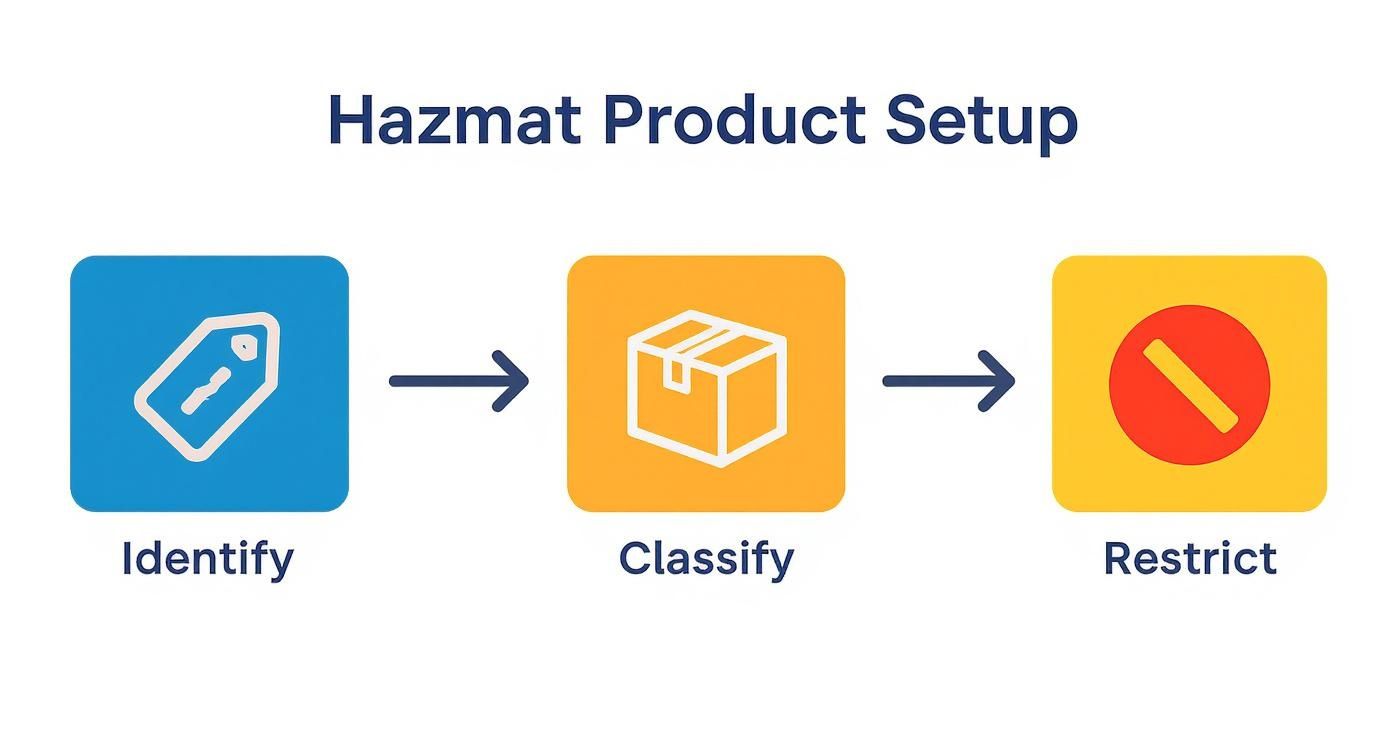 As you can see, identifying, classifying, and restricting products inside WooCommerce are essential prerequisites before you can even think about calling the API. Your code will need to loop through each item in the cart, check if it's a hazmat product, and then pull those specific attributes to build the request payload.
Anatomy of a UPS Dangerous Goods API Request
A typical API request to the UPS Dangerous Goods endpoint is a structured JSON object. It contains everything UPS needs to know about the shipment to give you a thumbs-up or thumbs-down.
Here’s a simplified example of what that payload might look like for a single hazmat item:
{
"Shipment": {
"Shipper": { ... },
"ShipTo": { ... },
"Package": {
"DangerousGoods": {
"ChemicalRecord": {
"CommodityID": "UN1263",
"ProperShippingName": "Paint",
"HazardClass": "3",
"PackingGroup": "II",
"Quantity": "10",
"UOM": "L"
}
}
}
}
}
You can see how CommodityID directly maps to your hazmat_un_number attribute, ProperShippingName maps to hazmat_proper_name, and so on. This mapping is the critical translation layer between your store's data and the UPS system. Get it wrong, and nothing works.
Interpreting Success and Error Responses
Once you send the request, the UPS API responds almost instantly with either a success or an error message. Your integration needs to be built to handle both scenarios gracefully.
A successful validation means the shipment is compliant. The API response will confirm this, and your system can move on to the next step—showing the customer valid shipping rates and, once the order is placed, generating a fully compliant UPS shipping label.
An error response is just as valuable. It's not a failure; it's a stop sign. It means something is wrong, and the response will include specific error codes and messages, like "Invalid commodity for air transport" or "Missing required hazmat documentation."
When an error pops up, your system should be configured to:
- Block the Checkout: Don't let the customer complete an order that can't ship.
- Display a Clear Message: Tell the customer exactly why they can't proceed (e.g., "Sorry, we cannot ship flammable liquids to your location via air.").
- Notify an Admin: Fire off an email alert to your store administrator with the full API error details so they can investigate and fix the underlying data or rule issue.
This automated check-and-balance is what makes your store truly compliant. It turns a complex, manual headache into a seamless, safe, and efficient workflow.
Testing Your Setup and Troubleshooting Common Errors
An integration isn't finished just because you've connected the wires. Now comes the critical part: battle-testing it. Launching your UPS Hazmat certification WooCommerce integration without putting it through its paces is like building a plane and skipping the pre-flight check—it’s a recipe for disaster.
Even a minor misconfiguration can cause blocked orders, frustrated customers, and expensive compliance violations. The whole point here is to break your system in a safe, controlled environment so it doesn’t fall apart in front of a real customer. Think of testing not as a final step, but as an essential part of the launch itself.

Creating a Comprehensive Testing Plan
Your testing needs to cover every possible path a customer might take. You have to be sure the system can handle simple orders just as well as complex ones, applying the right rules at exactly the right time. The best way to do this is on a staging or development copy of your site, where you can go wild without affecting your live store.
Here are a few scenarios I always run through:
- Single Hazmat Item: Add one regulated product to the cart and try to check out. Did the API check fire correctly? Are only compliant shipping methods, like UPS Ground, showing up?
- Mixed Cart: Now, throw a hazmat product in with a few regular, non-hazmat items. The system should be smart enough to spot the single regulated item and apply the necessary shipping restrictions to the entire cart.
- Air-Restricted Items: Test a product that’s a definite no-go for air travel, like a highly flammable liquid. Try checking out with an address that would typically trigger UPS 2nd Day Air®. The system should block that option and only offer ground services.
- Multiple Hazmat Products: Add two different hazmat items to the same cart—maybe one with a lithium battery and another that's a flammable aerosol. Make sure the API can correctly validate the combined shipment.
If you want a more structured approach, this Ship Restrict testing guide offers a solid framework for hammering out complex, rule-based setups.
Decoding Common API and Configuration Errors
Even with a meticulous setup, you’re bound to hit a few snags. The good news is that knowing what the errors mean is half the battle. When something goes wrong, the API response becomes your best friend, often giving you specific codes that point right to the source of the problem.
Let's walk through a few common issues you might run into.
Key Insight: Most so-called "API errors" aren't actually problems with the UPS API. They're usually issues with the data your store is sending to the API. It's just the API's way of telling you the information it got was incomplete or invalid.
Common Hazmat Integration Errors
| Error Message | Likely Cause | Actionable Solution |
|---|---|---|
| Invalid Hazmat Credentials | Your Client ID or Client Secret is wrong, or maybe your UPS account isn't actually approved for the Dangerous Goods API yet. | Head straight to your wp-config.php file and double-check the credentials. If they look right, get on the phone with your UPS rep to confirm Dangerous Goods API access is enabled. |
| Missing Commodity Data | A hazmat product in the cart is missing a crucial piece of info—its UN number, hazard class, or packing group. | Open the product editor for that item and make sure every custom hazmat attribute is filled out completely and accurately. Typos are a common culprit here. |
| Invalid Service for Destination | The customer is trying to pick a shipping method (like an air service) that isn't allowed for that specific hazardous material. | Review your shipping class rules. You need to ensure products in a "Ground Only" class are correctly configured to hide all air-based shipping options at checkout. |
| Authentication Failed | This is another credentials issue, often popping up when you move from a test environment to a live one but forget to swap out the API keys. | Make sure you're using your production UPS credentials, not the sandbox/test keys. If you have to, just regenerate the keys in the UPS Developer Portal. |
By methodically working through these test cases and learning to interpret common errors, you can launch your integration with confidence. This proactive troubleshooting guarantees a smooth, compliant, and reliable shipping workflow from day one, which means less friction for your team and happier customers.
Common Questions About UPS Hazmat Integration
Once you start connecting UPS Hazmat services to your WooCommerce store, a few practical questions almost always come up. Whether you're in the planning stages or troubleshooting an existing setup, getting quick, clear answers can save you a ton of time and keep you out of compliance trouble.
This is your go-to reference for those tricky situations that pop up during and after the integration. Let’s tackle the most common ones we hear from merchants.
Can I Use One UPS Account for Multiple Stores?
Yes, technically you can. It’s possible to use the same UPS account and API credentials across several WooCommerce stores. Just be aware that all your billing, shipment tracking, and compliance records will funnel into that single account.
This setup works just fine if all your stores operate under one business entity. However, if they are legally separate companies, it's highly recommended to set up distinct UPS accounts for each one. This keeps your billing and compliance records completely separate, which is much cleaner for tax and legal purposes down the road.
What Happens if a Customer Mixes Hazmat and Non-Hazmat Items?
This is a classic e-commerce scenario, and your system needs to handle it flawlessly. When a customer’s cart contains both regulated and standard products, the shipping rules for the most restrictive item must apply to the entire order.
Imagine a customer buys a t-shirt (non-hazmat) and a bottle of flammable perfume (hazmat, must ship ground). Your system should automatically:
- Flag the perfume as a regulated item.
- Apply ground-only shipping restrictions to the whole cart.
- Hide any air shipping options like UPS 2nd Day Air® at checkout.
A properly configured system ensures compliance for the entire shipment, not just the hazardous item. This simple logic prevents a mixed cart from accidentally turning into a federal shipping violation.
How Often Should I Update My Product Hazmat Data?
You need to review your product hazmat data at least annually, or anytime a product’s formulation changes. Regulatory bodies like the DOT or IATA can and do update classifications, UN numbers, and proper shipping names.
Staying on top of this is crucial. A product that was perfectly compliant last year might fall under new rules this year. We suggest setting a recurring calendar reminder to audit your hazmat product attributes against the latest UPS guidelines and federal regulations. Think of it as essential, ongoing maintenance to avoid falling out of compliance.
Is It Possible to Ship Hazmat Items Internationally?
Shipping hazardous materials across borders is possible, but it dials up the complexity—a lot. It requires strict adherence to IATA (International Air Transport Association) regulations, which are often much more stringent than the domestic DOT rules you might be used to.
Before you even consider it, you have to confirm that your:
- UPS contract explicitly allows for shipping international dangerous goods.
- Team holds current IATA certification, which is a separate training from the domestic DOT certification.
- Integration can generate international paperwork, like the Shipper's Declaration for Dangerous Goods.
Frankly, many businesses decide to restrict their hazmat products to domestic shipping only. It avoids the significant operational overhead and legal risks. If you do want to move forward, our advice is to start small—pick a single country, run extensive tests, and get everything perfect before you even think about expanding.
Automate your shipping compliance and eliminate costly errors with Ship Restrict. Our powerful WooCommerce plugin allows you to create granular shipping rules to block restricted orders before checkout, ensuring every shipment is compliant. Learn more and get started today at https://shiprestrict.com.
Automate Shipping Compliance
Stop worrying about restricted states. Ship Restrict handles it automatically.

Cody Yurk
Founder and Lead Developer of ShipRestrict, helping e-commerce businesses navigate complex shipping regulations for regulated products. Ecommerce store owner turned developer.
Automate Shipping Compliance
- Block restricted states
- No more cancellations
- Set and forget
3-day free trial · Card required